Image
This guide explains how to use the Image content block in the Hurco Backoffice. It renders a standalone image on the page, either full-width or contained within the page's content column.
The component is available in the Content zone of the Content Page Collection Type.
Overview
The Image block is a simple, single-purpose block for inserting an image between other content sections. It is useful for adding visual breaks, diagrams, screenshots, or any standalone image that should stand on its own outside of a more complex layout component.
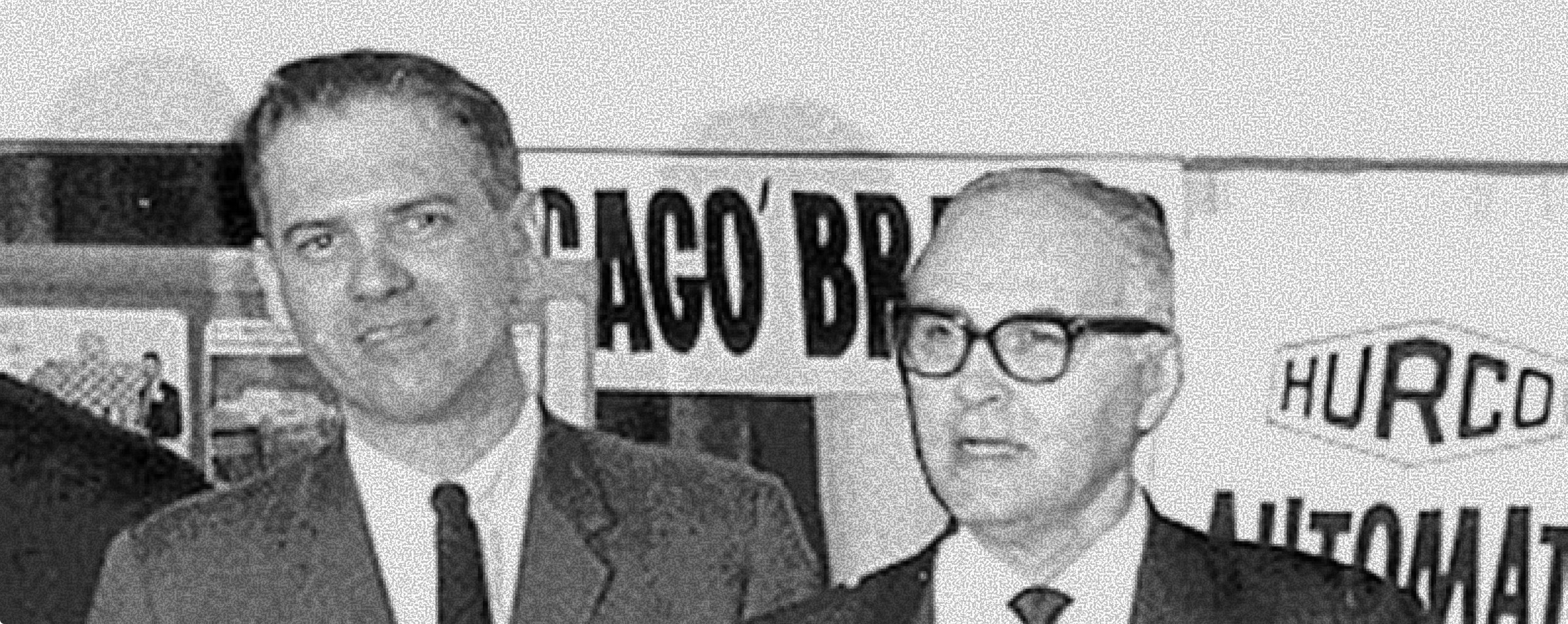
Website view — Full width:
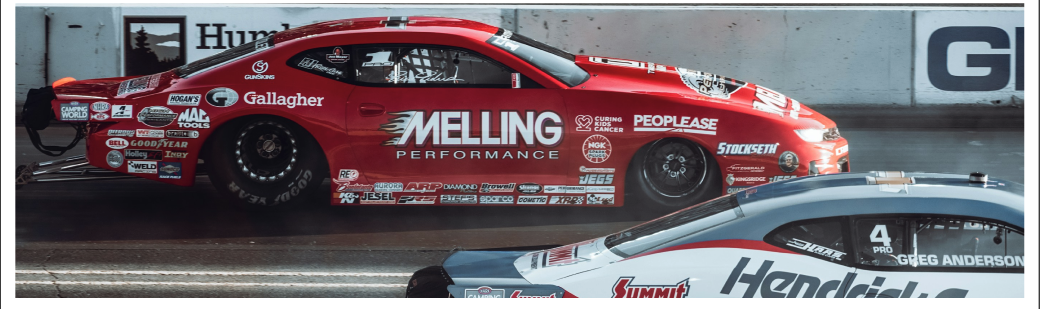
Website view — Contained:
Fields
-
Image (required) — The image to display. Selected from the Media Library. The image should have Alt Text set for accessibility.
-
Full Width (optional, default: true) — Controls whether the image spans the full browser width or is constrained to the content container.
true(default) — Image stretches to fill the full width of the viewport.false— Image is constrained to the standard page container width.
Always set meaningful Alt Text on images in the Media Library. This improves accessibility and SEO. See the Alt Text guide for more details.
For more guidance on publishing content and best practices, check out our Publishing Content Guide.