Timeline
This guide explains how to use the Timeline component in the Hurco Backoffice. It renders an interactive, carousel-based timeline with labelled steps, each associated with a title, description, and an optional image.
The component is available in the Content zone of the Content Page Collection Type.
Overview
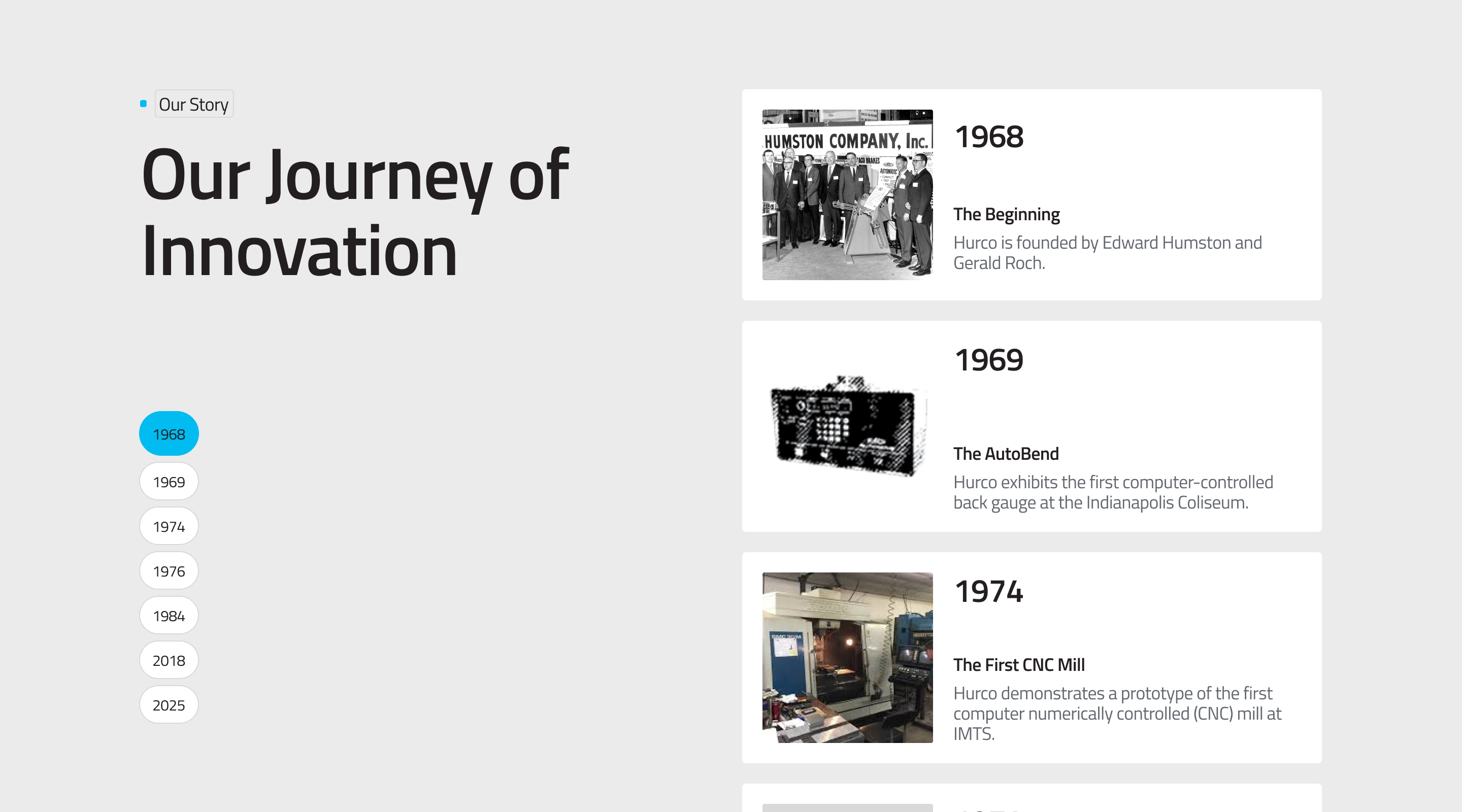
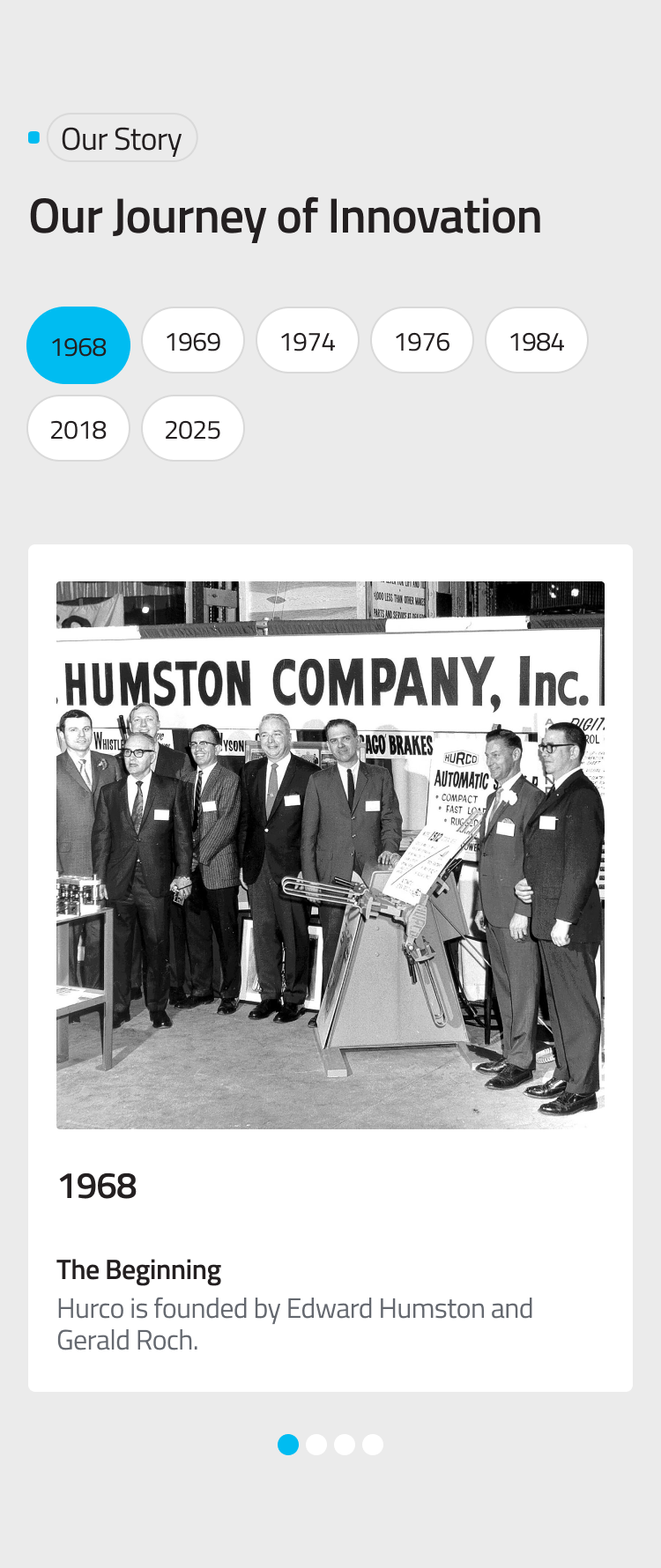
The Timeline is an interactive section that lets visitors step through a sequence of events or stages. On desktop, the steps are shown as vertical buttons on the left, with the selected item's image displayed on the right. On mobile, it becomes a horizontal scrollable carousel.
Website view — Desktop:
Website view — Mobile:
Fields
-
Eyebrow (optional) — A short label displayed above the timeline heading, styled as a small badge or tag.
-
Title (optional) — The section heading displayed above the timeline steps.
-
Items (required) — The list of steps in the timeline. Each item contains:
- Label — The short step label displayed on the navigation button (e.g. "Step 1", "2015").
- Title — The heading for this step, displayed when the step is active.
- Description — The body text for this step.
- Image (optional) — An image associated with this step, displayed on desktop when the step is selected.
Behaviour
- Clicking a step button activates it and shows the corresponding content.
- On desktop, the image transitions smoothly when switching between steps.
- On mobile, steps are navigated by swiping horizontally through the carousel.
- The desktop and mobile carousels are synchronised — selecting a step on one updates the other.
For more guidance on publishing content and best practices, check out our Publishing Content Guide.