Media Grid Hero
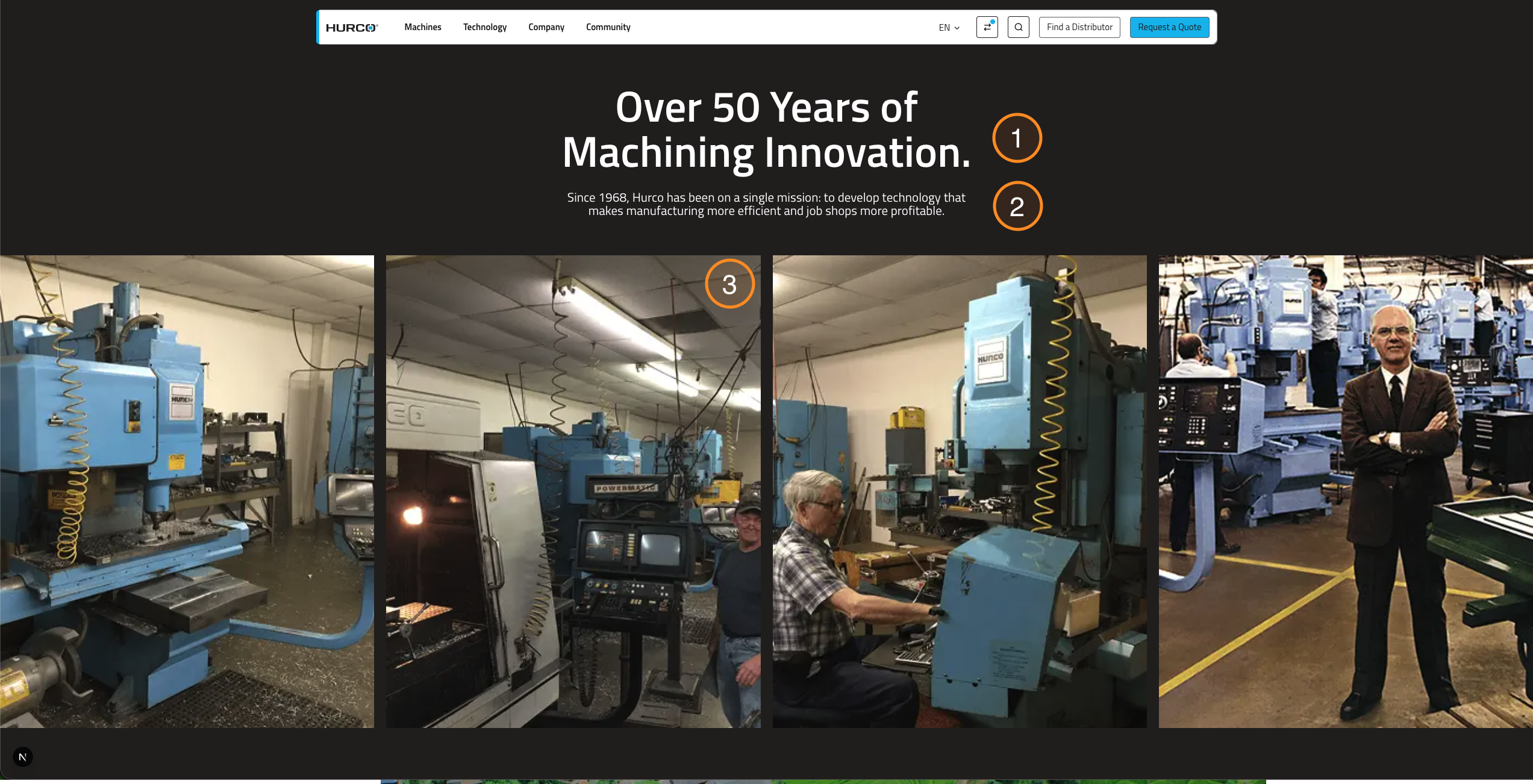
The Media Grid Hero section is a visually appealing component that allows you to showcase multiple media items in a grid format. This section acts as a hero banner, providing an engaging way to display images, and text.
Managing the Media Grid Hero Section
The Media Grid Hero section can be added to your website through the Hurco Backoffice. It is available in the Content/Pages collection.
To manage the Media Grid Hero section, follow these steps:
How to Add a Media Grid Component to a Hero Section
Learn how to add a media grid component to your hero section. This guide walks you through the process of selecting and configuring media assets for your hero element.
1. Access Content Manager
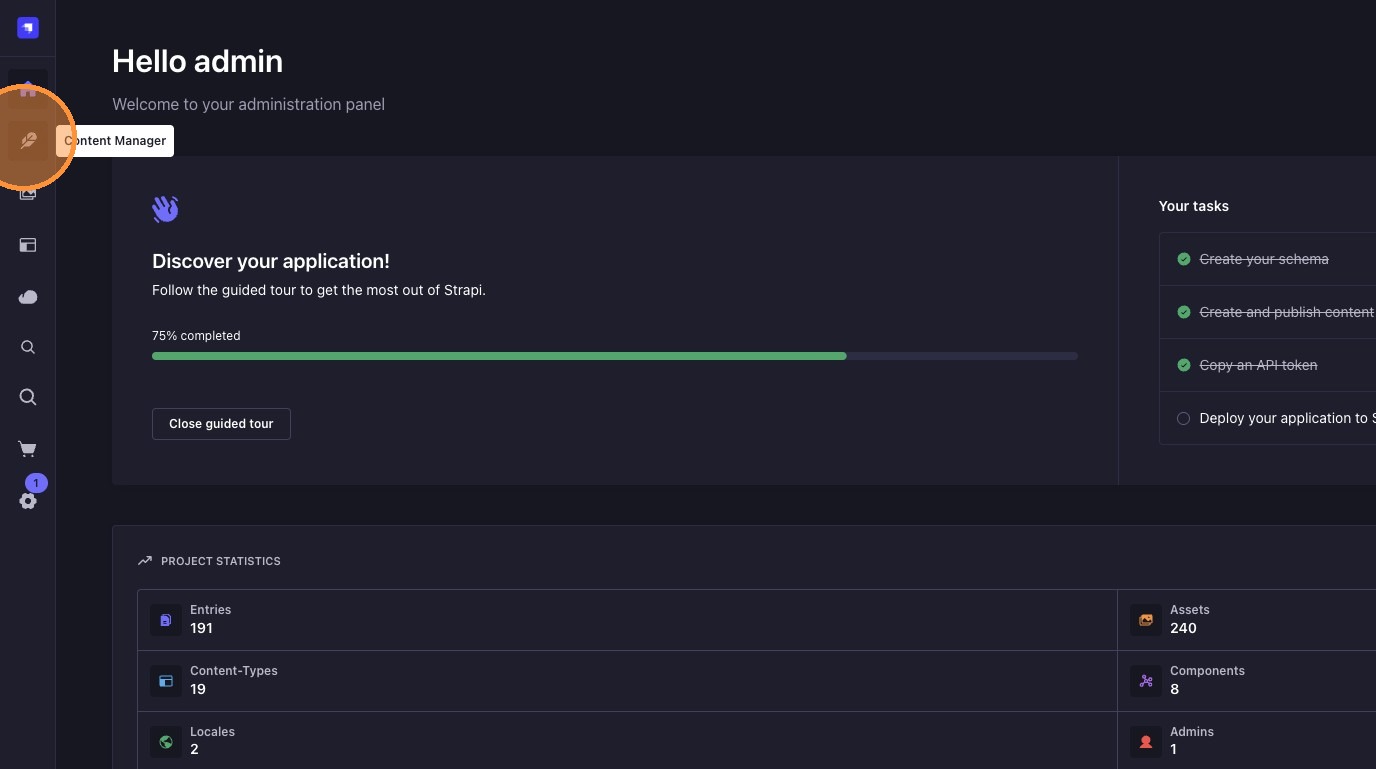
3. Click "Content/Pages"
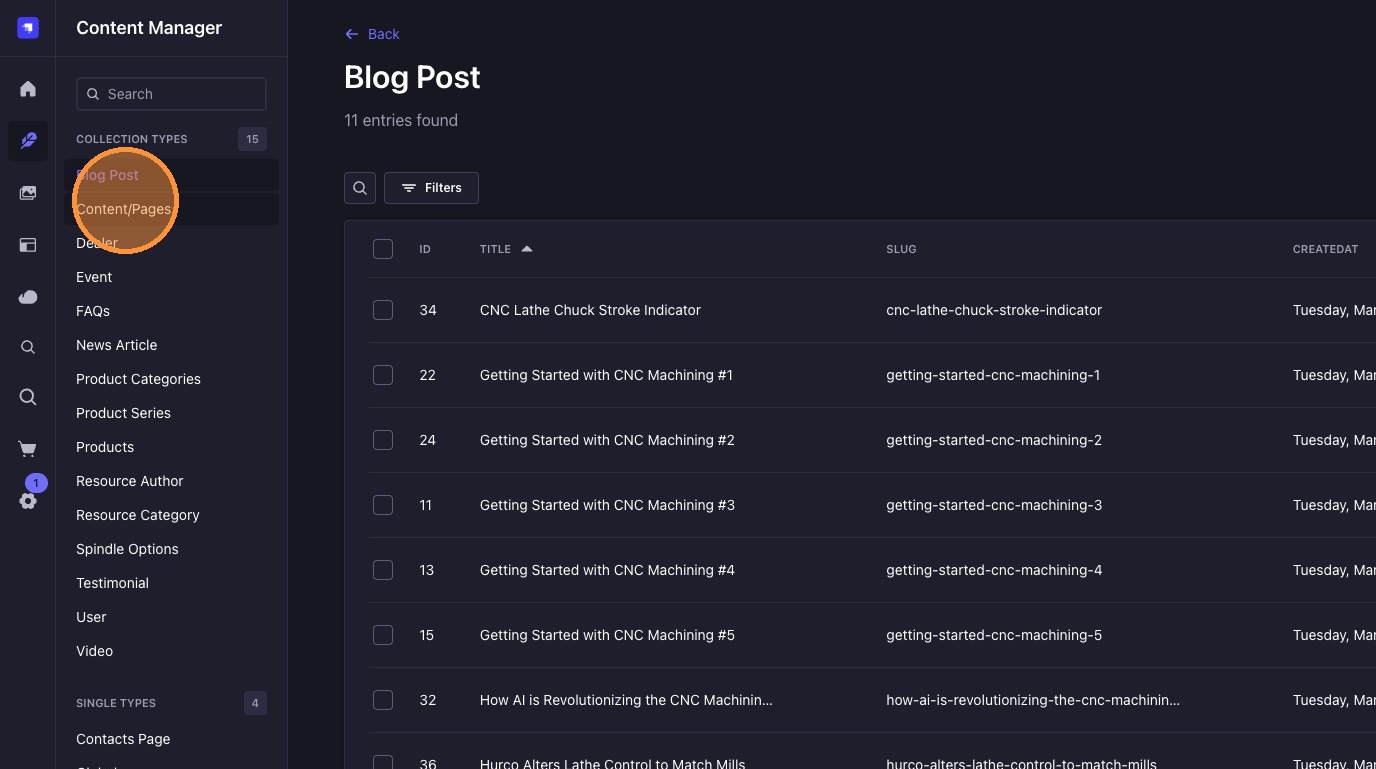
4. Select the page you want to add (Eg. History) the component or create a new one by clicking "Create new entry"
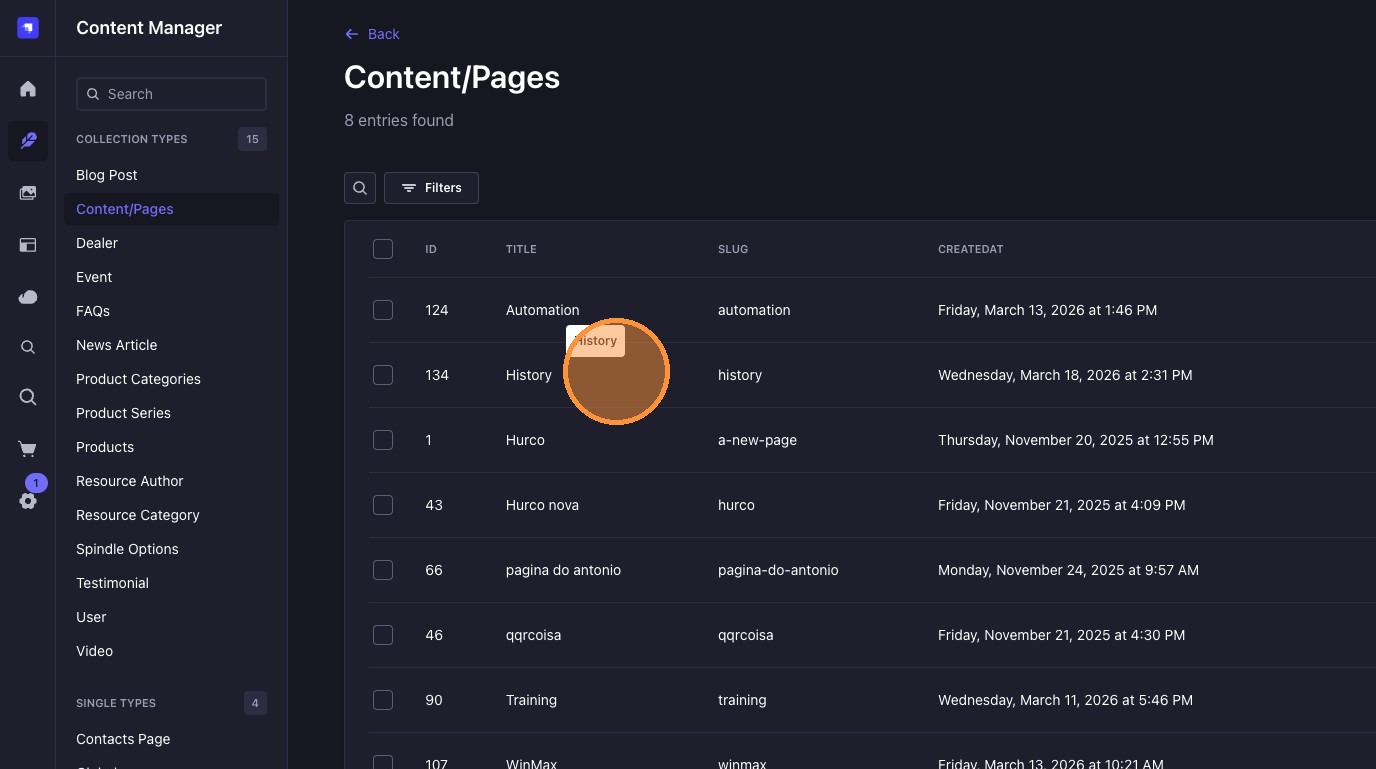
5. Click "Add a component to hero"
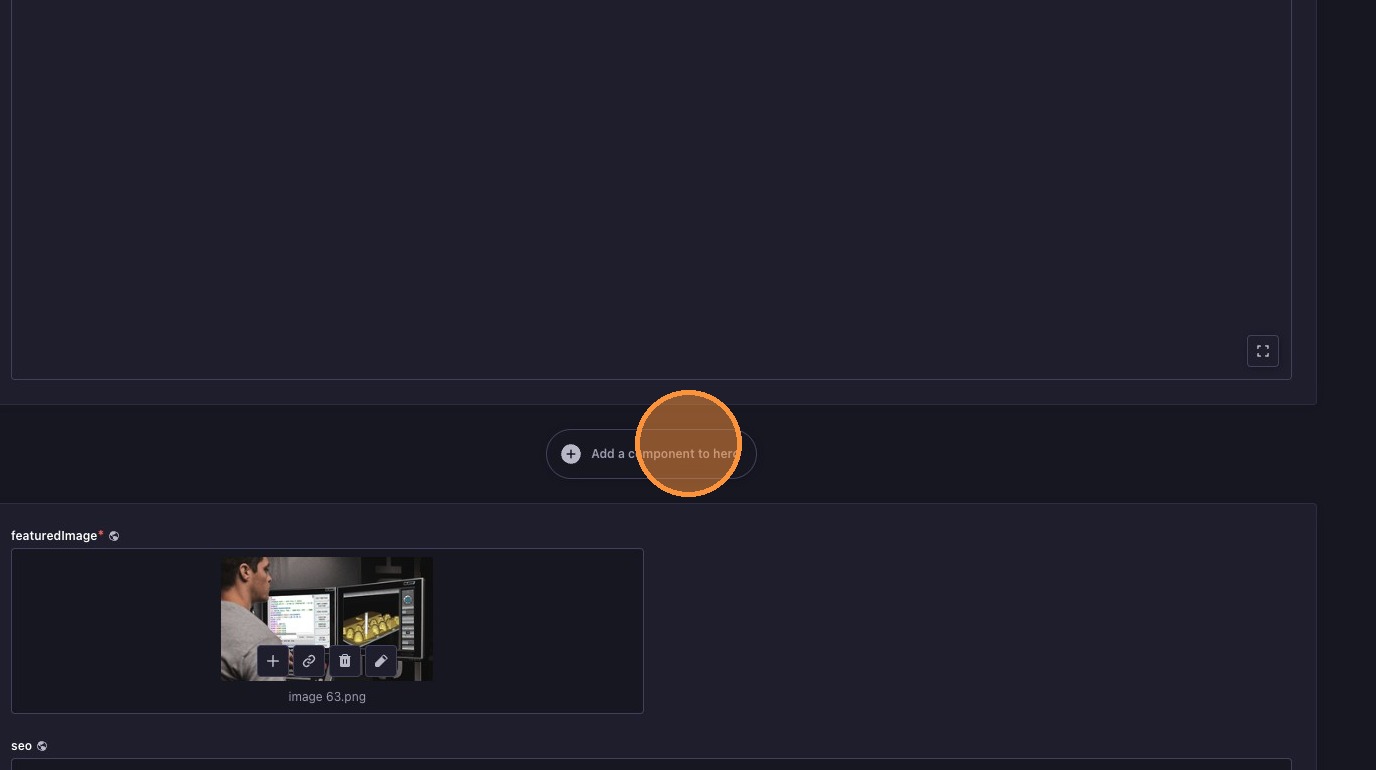
6. Select "Media Grid Hero"
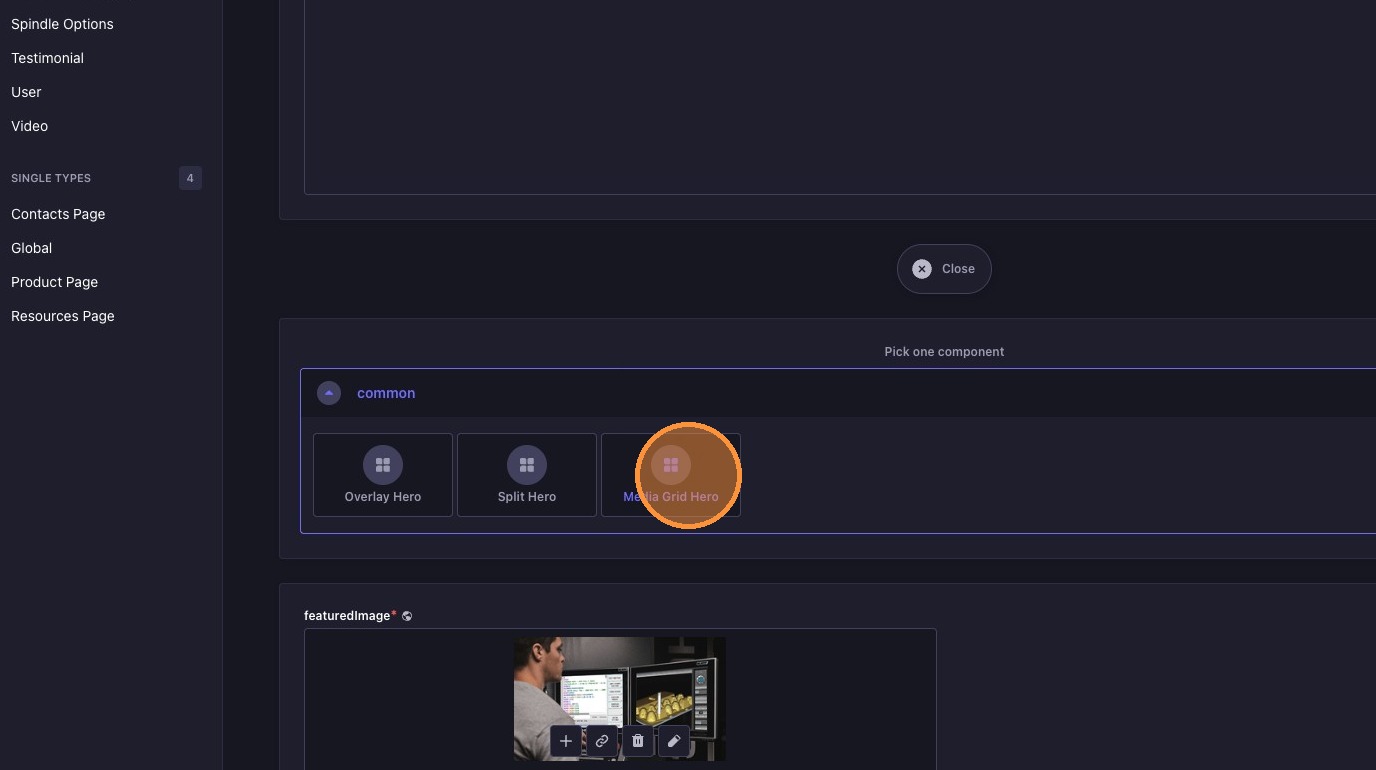
7. Open "Media Grid Hero"
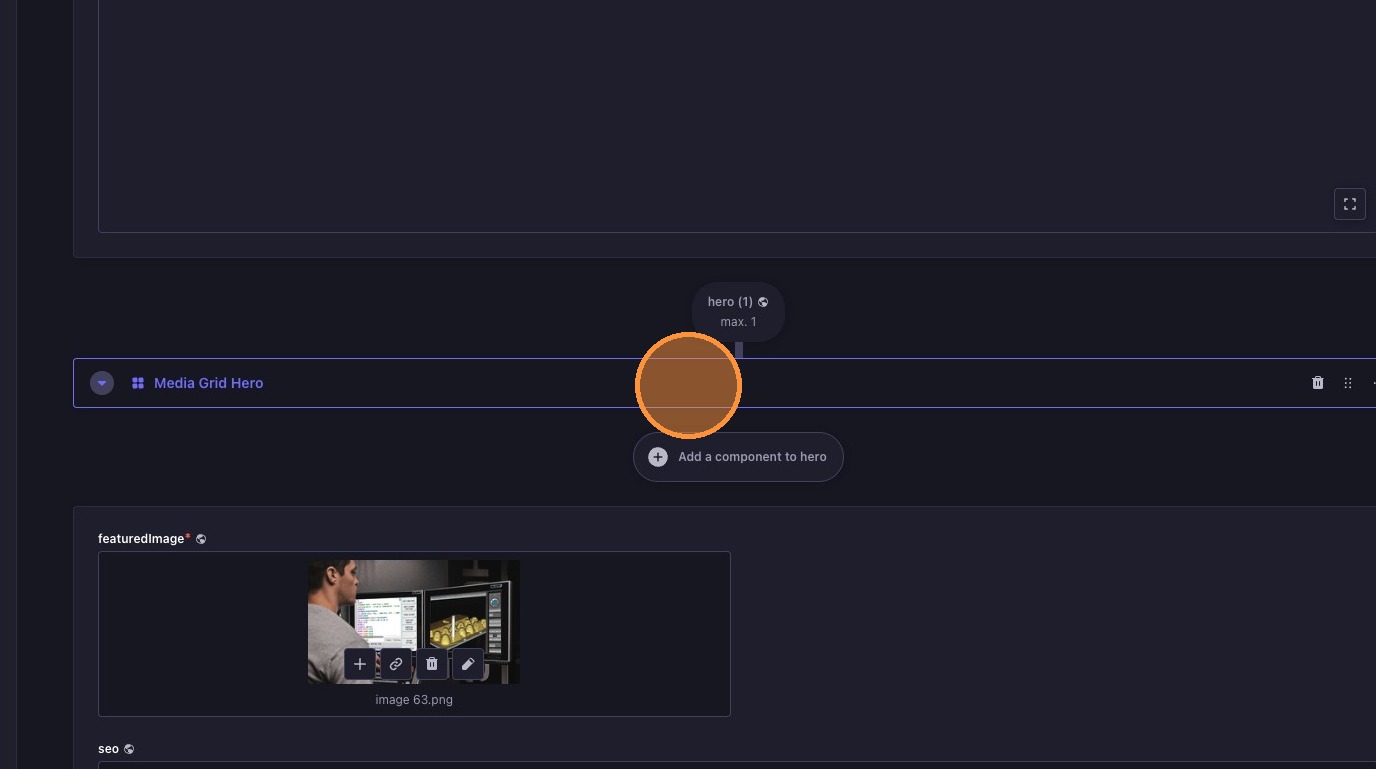
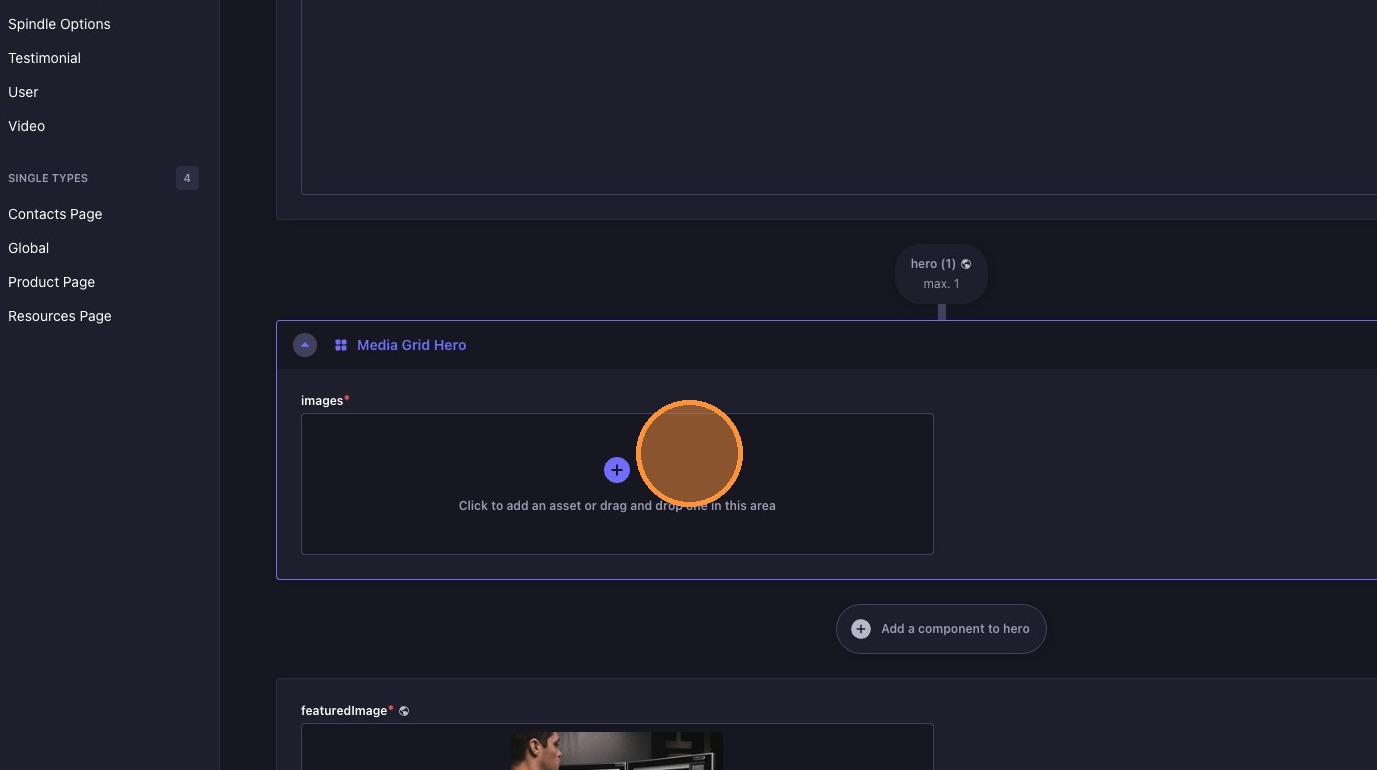
8. Click "Click to add an asset or drag and drop one in this area"
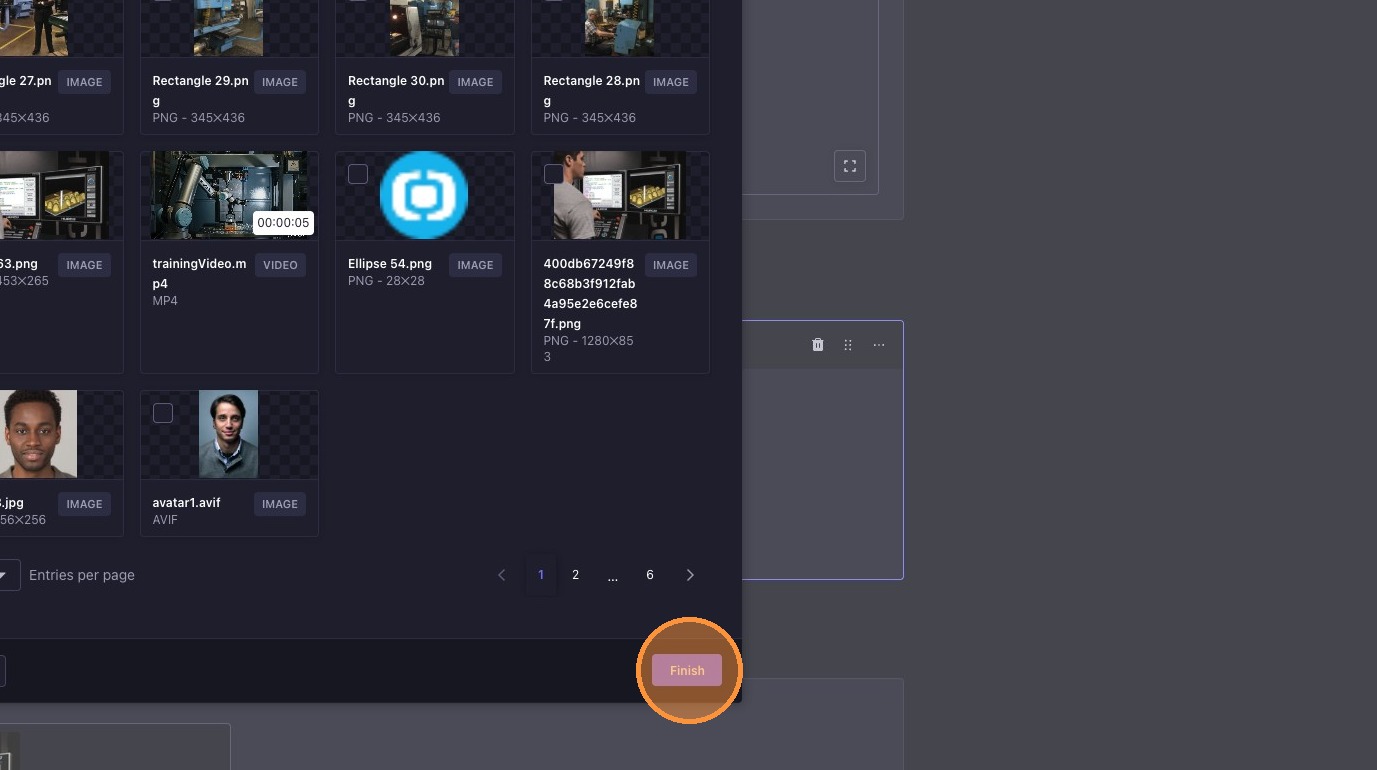
This component will only display the first 4 images. Adding more than 4 images will not display on the website.
9. Once you have added your media assets, click "Finish"
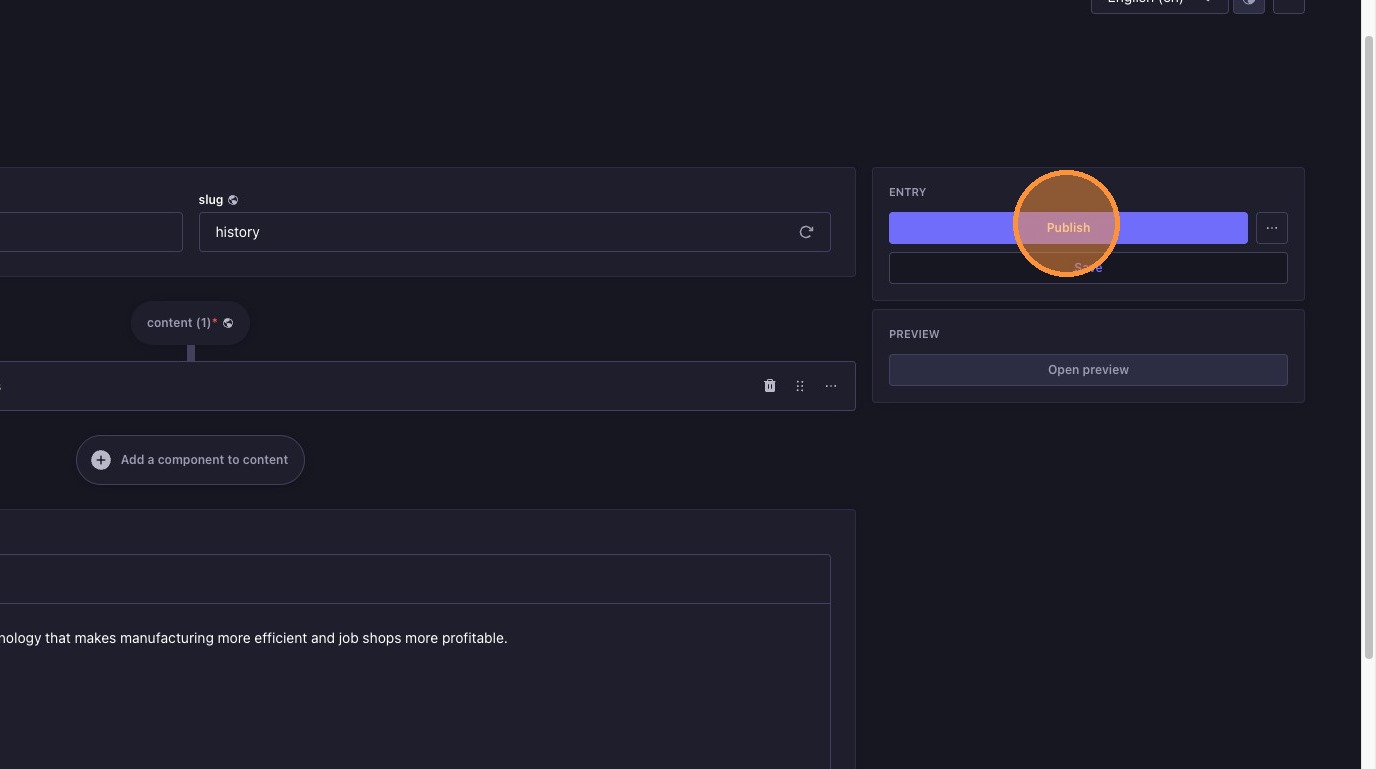
10. Click "Publish"
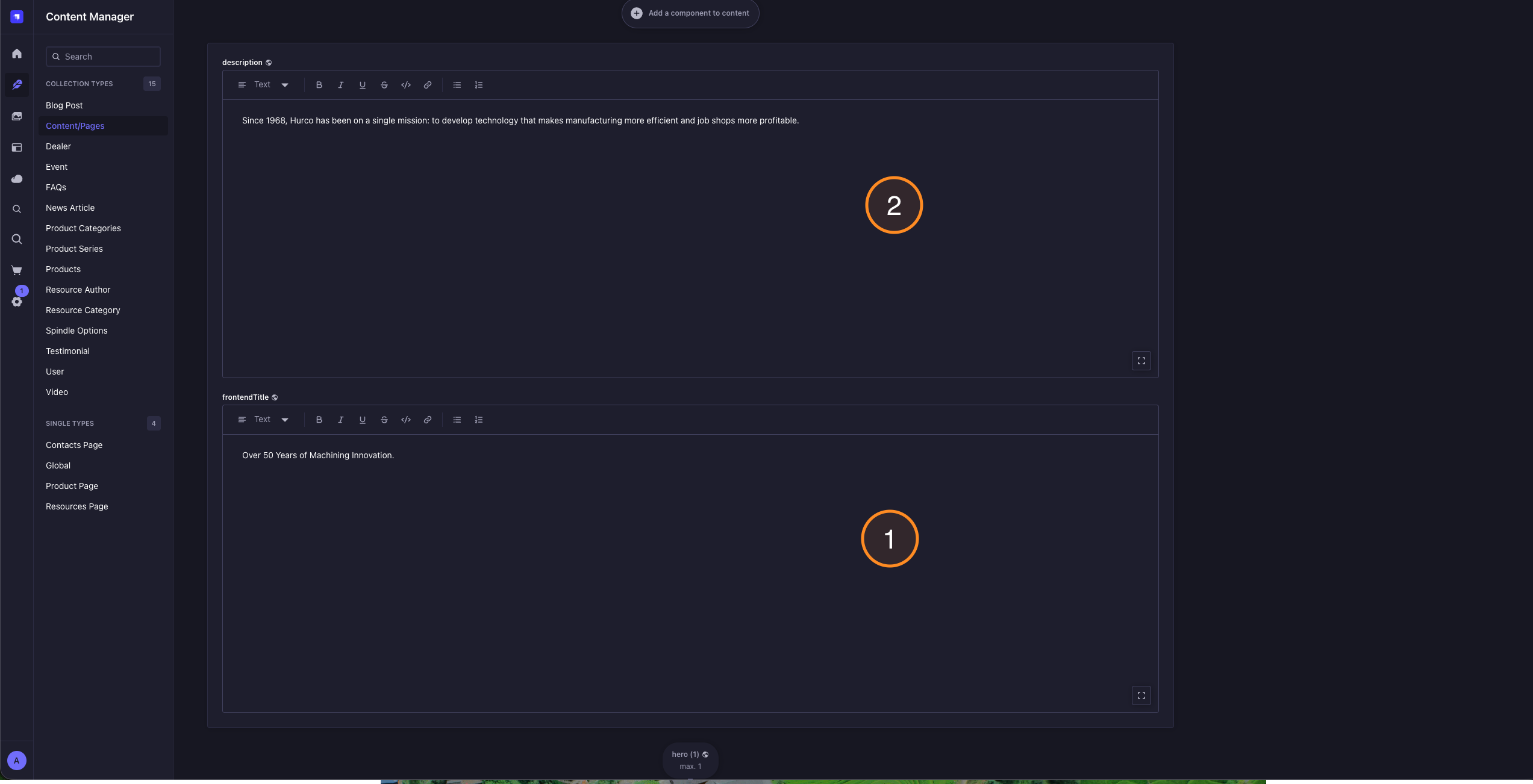
This component will also get the title and description from the page itself. Please make sure the FrontEndTitle and Description fields are filled in the page collection type in order for the component to display the title and description on the website.
Caption
-
Front End Title: This field is used to add a title to the Media Grid Hero section. It will be displayed as the Hero Title.
-
Description: This field allows you to add a description or additional information.
-
Images: This is where you can upload and manage the media assets that will be displayed in the grid.