Training Schedule
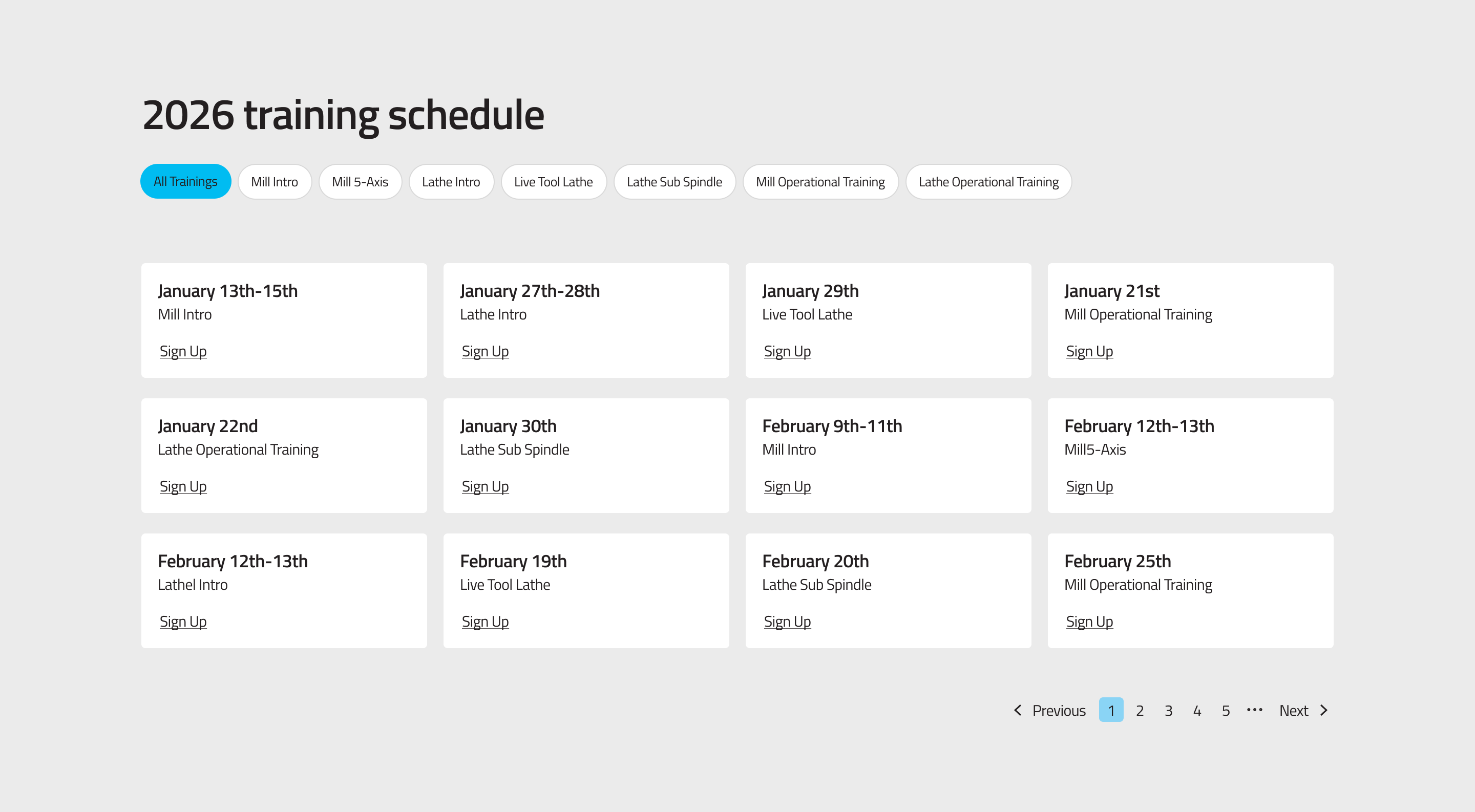
The Training Schedule component displays a filterable, paginated grid of upcoming training sessions pulled from the Backoffice. Visitors can filter sessions by course type and sign up directly via a pre-filled HubSpot form.
What This Component Does
- Fetches all published Training Sessions from the Backoffice.
- Displays sessions as cards sorted by start date (ascending).
- Provides a filter bar based on published Training Session Categories.
- Paginates results (12 sessions per page).
- Generates a sign-up button on each card that pre-fills the HubSpot form with the course type and date.
- Substitutes
{year}in the section title with the current year automatically.
Backoffice Fields
1. Title (required)
The heading displayed at the top of the Training Schedule section. Supports the {year} placeholder, which is replaced with the current calendar year at render time.
Example: {year} Training Schedule renders as 2026 Training Schedule.
2. Form URL (required) The full URL of the HubSpot registration form. Defaults to the standard Hurco training sign-up form. Only change this if the form URL has changed in HubSpot.
Default value: https://share.hsforms.com/14PukRg7sRlGoLq65c4Bx1g4hmk
3. Category Field Name (required) The internal HubSpot field name used to pre-populate the course type when a visitor clicks Sign Up. This must match the field name configured in HubSpot.
Default value: class_type
4. Date Field Name (required) The internal HubSpot field name used to pre-populate the session date when a visitor clicks Sign Up. This must match the field name configured in HubSpot.
Default value: hurco_training_date
Setup Steps
- Add the Training Schedule component to the page in the Backoffice.
- Set the Title (use
{year}to include the current year dynamically). - Confirm or update the Form URL if the HubSpot form link has changed.
- Leave Category Field Name and Date Field Name at their defaults unless HubSpot field names have changed.
- Save and publish the page.
- Verify that sessions appear and that the sign-up button pre-fills the form correctly.
Make sure Training Sessions and Training Session Categories are published in the Backoffice before the component can display any data. See the Training Sessions guide.
Troubleshooting
-
No sessions are displayed Check that Training Sessions are published and have a category assigned. Unpublished sessions do not appear.
-
Filter buttons are missing or incomplete Check that all relevant Training Session Categories are published. Draft categories do not appear in the filter bar.
-
Sign-up form does not pre-fill correctly Verify that Category Field Name and Date Field Name match the current HubSpot field names exactly (case-sensitive).
-
The year in the title is wrong Ensure the title uses the
{year}placeholder. If a specific year is hardcoded, update it manually.
Best Practices
- Use
{year}in the title to avoid manual updates each year. - Keep the default HubSpot field names unless the form has been reconfigured in HubSpot.
- Publish new Training Sessions before the start of each year's training cycle.
- Archive or delete past sessions to keep the schedule current.