Video Resources
Video Resources
Video resources let you add video content to your website's Resources section. This guide explains how video resources differ from other resource types and provides instructions for managing them in the Hurco Backoffice.
Video Resource Fields

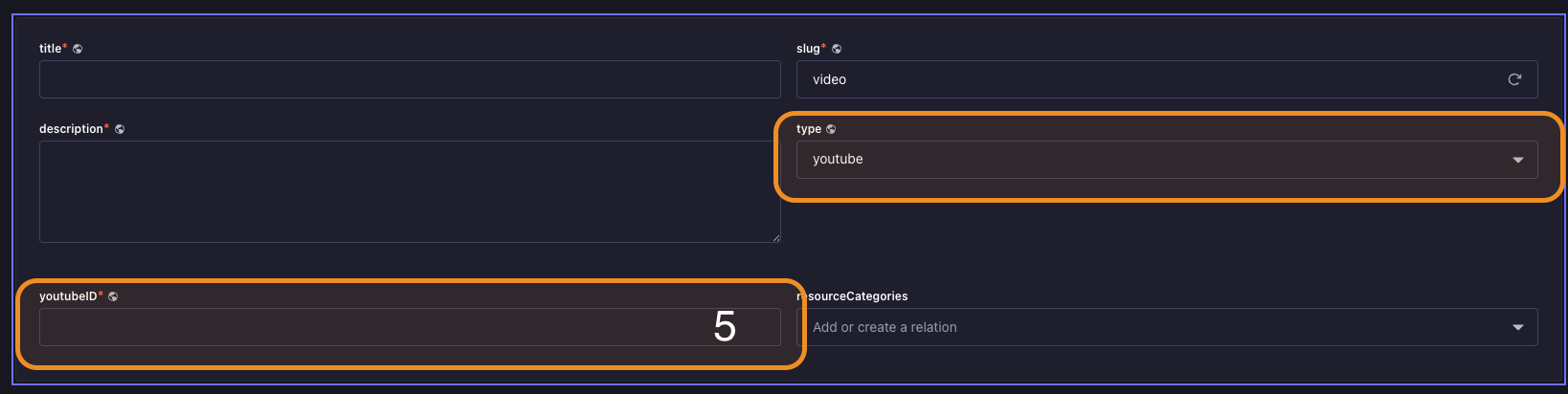
Fields Explained
1. Title
The title of the video resource entry, displayed on the website.
2. Slug
The URL slug for the video resource entry, used in the resource page URL.
3. Description
A brief description of the video resource entry, displayed on the website.
4. Type
Defines where the video is hosted: "YouTube" or "Internal". Depending on your selection, the Resource Video URL field will require a YouTubeID or allow you to pick a video from the media library.
5. Video File
Displayed only if you select "Internal" in the Type field. Lets you choose a video file from the media library to display as the video resource.
5. YouTubeID
Displayed only if you select "YouTube" in the Type field. Enter the YouTubeID of the video you want to display.
6. Video Thumbnail
Lets you select an image from the media library to use as the thumbnail for the video resource. Only available for "Internal" videos; YouTube videos use the default YouTube thumbnail.
7. Resource Category
The category of the video resource entry, used to organize and filter resources.
YouTubeID Help
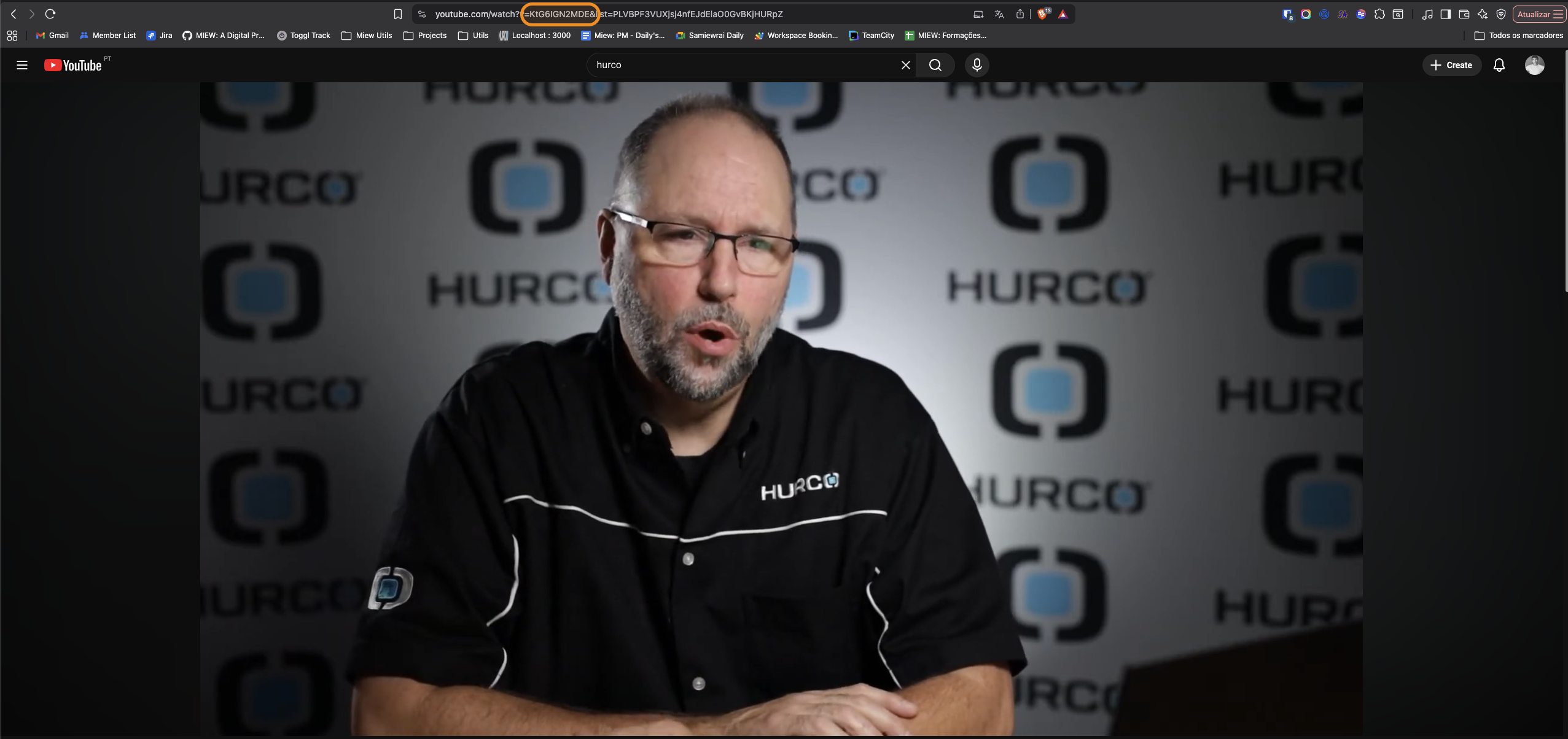
When selecting the YouTube type, make sure to input the correct YouTubeID in the Resource Video URL field. The YouTubeID is the unique identifier for a YouTube video and can be found in the video's URL. For example, in the URL "https://www.youtube.com/watch?v=KtG6IGN2MDE", the YouTubeID is "KtG6IGN2MDE". If the YouTubeID is not entered correctly, the video resource may not display properly on the website.