Footer Fields Overview
This guide explains each field available in the footer configuration, what it controls, and how it appears on your website.
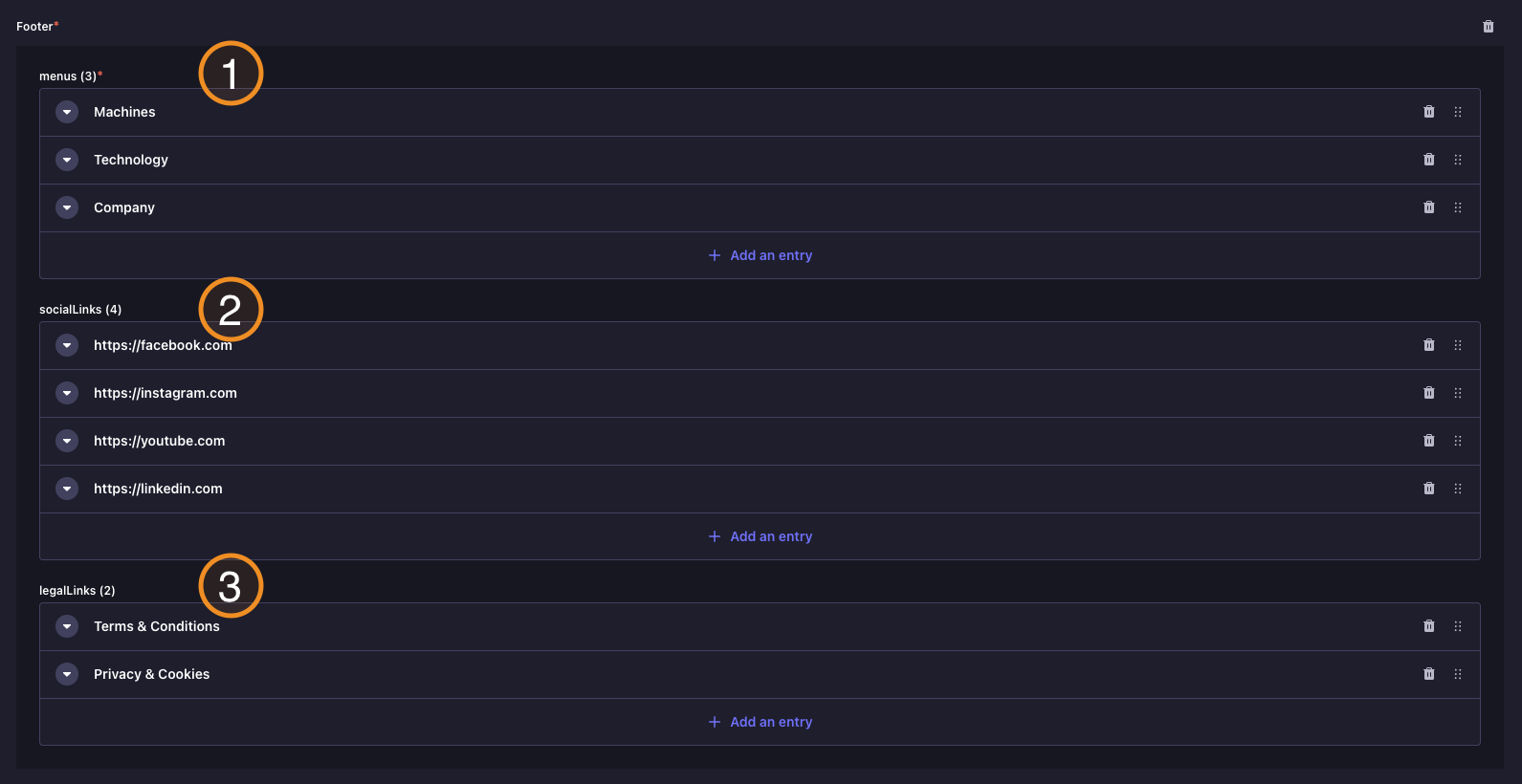
Backoffice view of the footer fields:
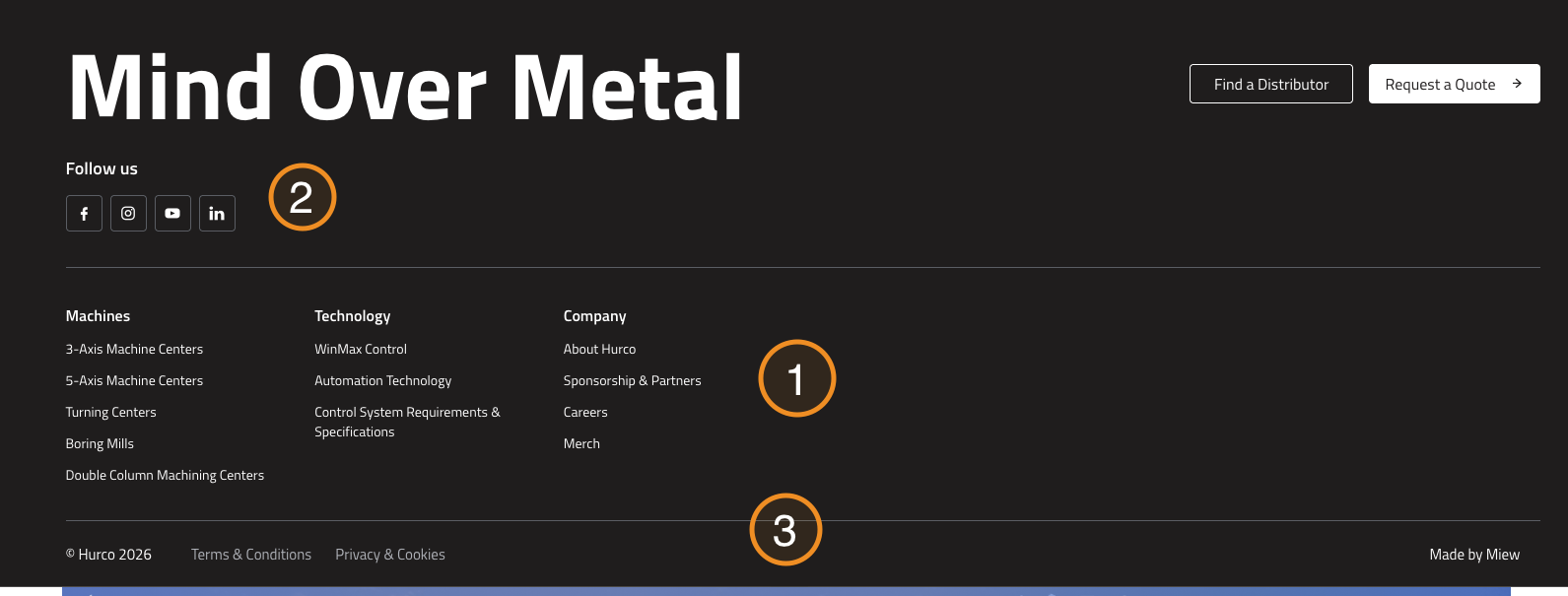
Website view of the footer:
Caption and usage of each field:
-
Menus - This field allows you to manage the links that appear in the footer menu. You can add, edit, or remove links to ensure that users have easy access to important sections of your website.
-
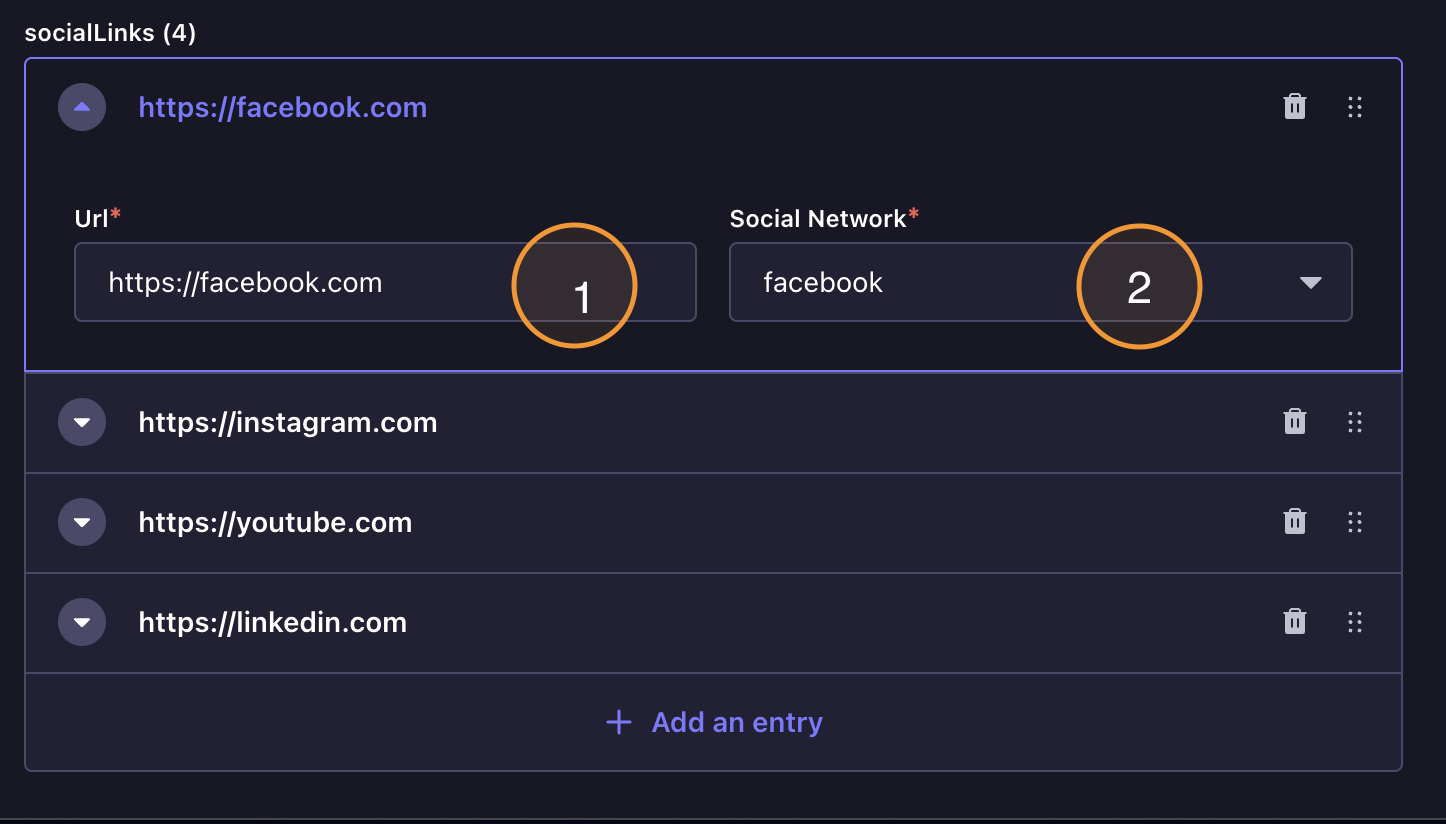
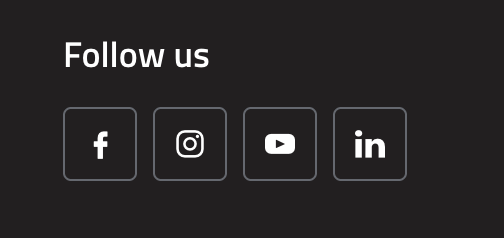
Social Links - This field is used to manage the social media links that appear in the footer. You can add links to your social media profiles, such as Facebook, Twitter, LinkedIn, etc., to help users connect with your brand on various platforms.
-
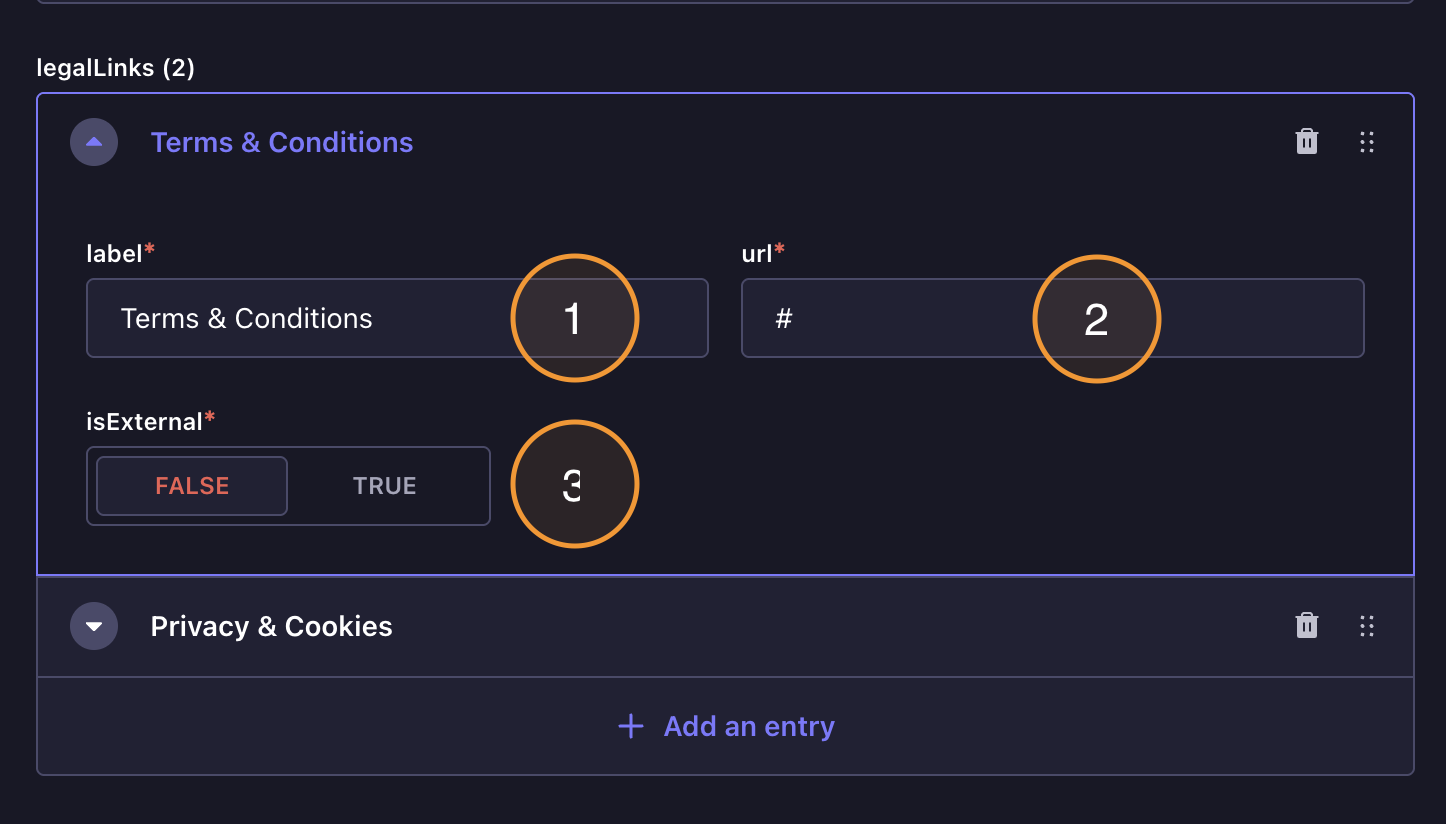
Legal Links - This field is for managing legal-related links, such as Privacy & Cookies and Terms & Conditions. These links are crucial for compliance and providing users with necessary legal information.
Menus
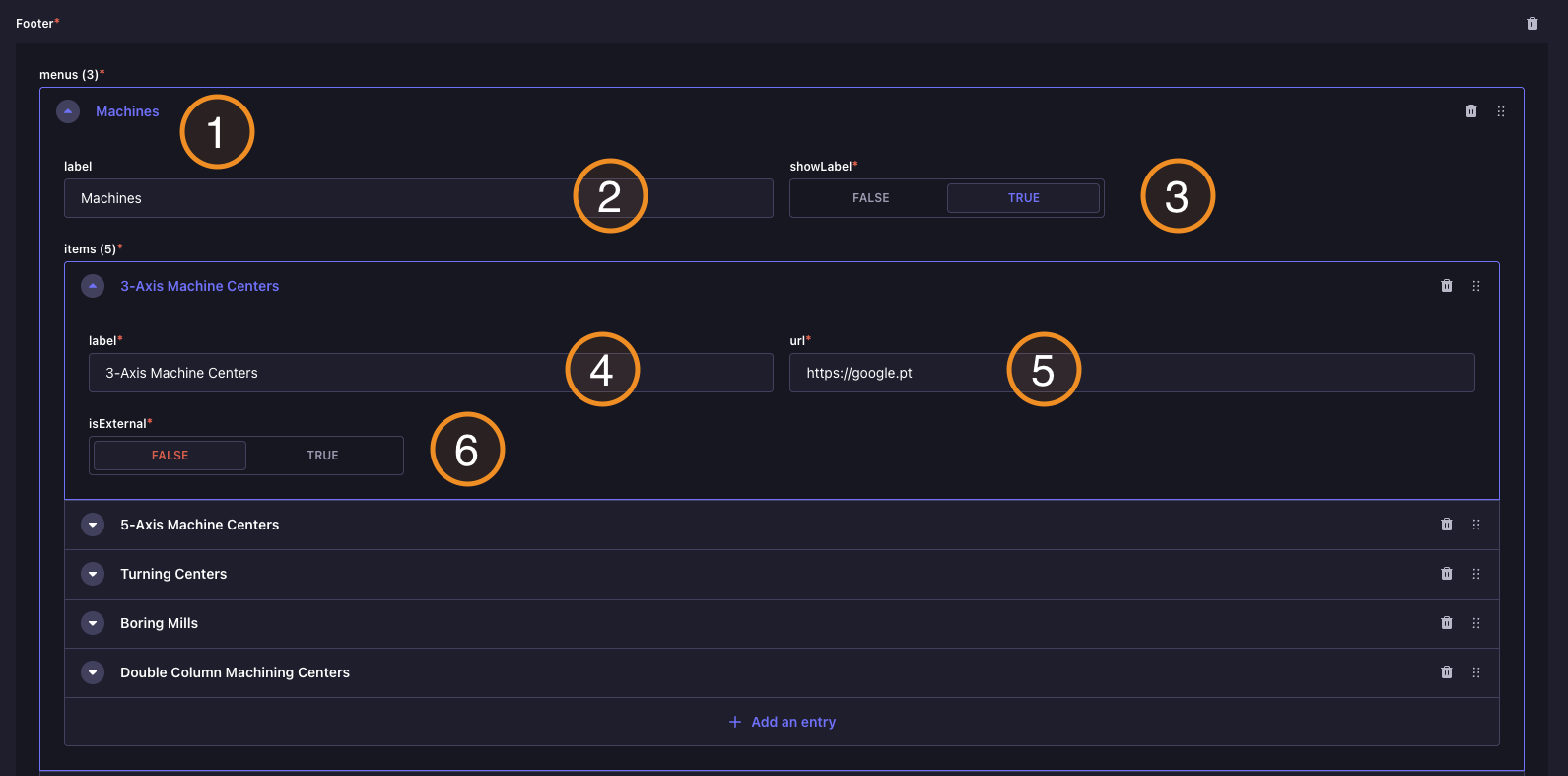
Backoffice
Website
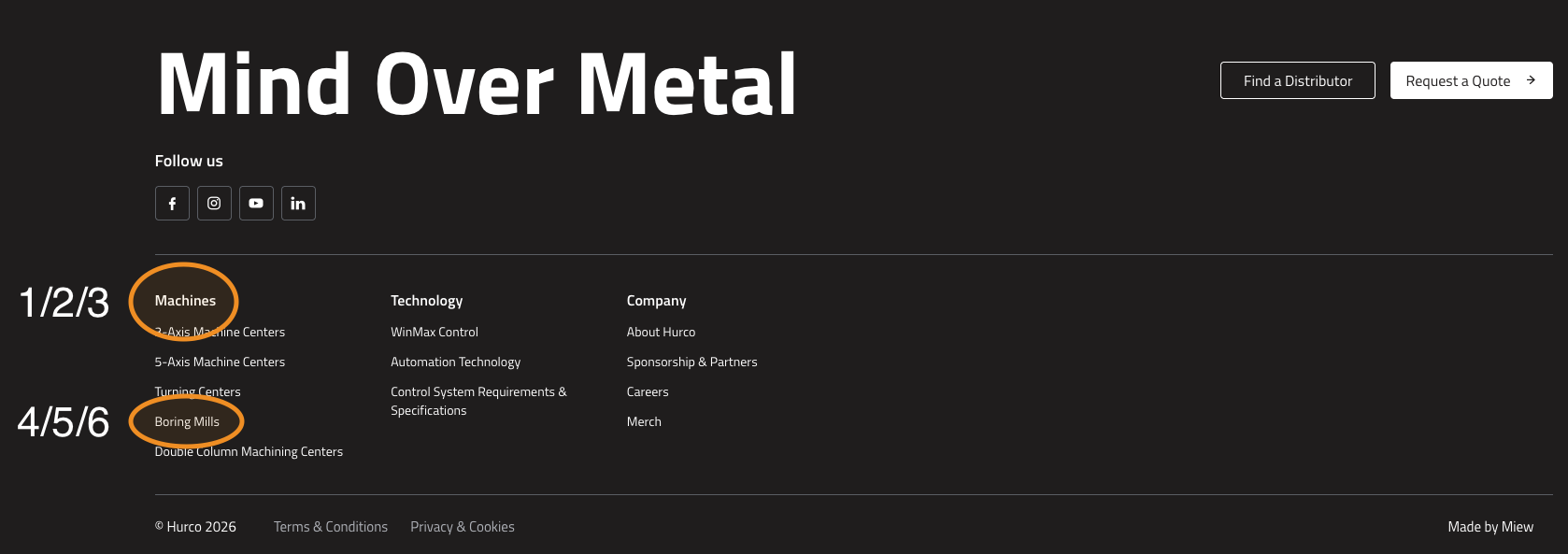
1/2. Label - This is the text that will be displayed for the link section title in the footer menu. It should be clear and concise to help users understand where the link will take them.
-
showLabel - This toggle determines whether the label for the link section is displayed in the footer. If enabled, the label will be visible; if disabled, it will be hidden.
-
Link Label - This is the text that will be displayed for each individual link within the footer menu. It should accurately describe the destination of the link.
-
Link URL - This is the URL that the link will point to when clicked. It should be a valid and complete URL to ensure that users are directed to the correct page.
-
isExternal - This toggle indicates whether the link points to an external website. If enabled, the link will open in a new tab or window; if disabled, it will open in the same tab.
Social Links
Backoffice
Website
- URL - This is the URL of your social media profile. It should be a valid and complete URL to ensure that users are directed to the correct social media page.
- Social Network - This dropdown allows you to select the social media platform (e.g., Facebook, Twitter, LinkedIn) associated with the URL provided. This helps in displaying the correct icon for the social media link in the footer.
Legal Links
Backoffice
Website

- Label - This is the text that will be displayed for the legal link section title in the footer. It should clearly indicate that the links are related to legal information.
- Url - This is the URL that the legal link will point to when clicked. It should be a valid and complete URL to ensure that users are directed to the correct legal information page.
- isExternal - This toggle indicates whether the legal link points to an external website. If enabled, the link will open in a new tab or window; if disabled, it will open in the same tab.