How to Create, Edit, and Delete Dealers
Follow these steps to manage dealers in the Hurco Backoffice:
Add a New Dealer
1. Access the Content Manager
Open the Content Manager from the sidebar.
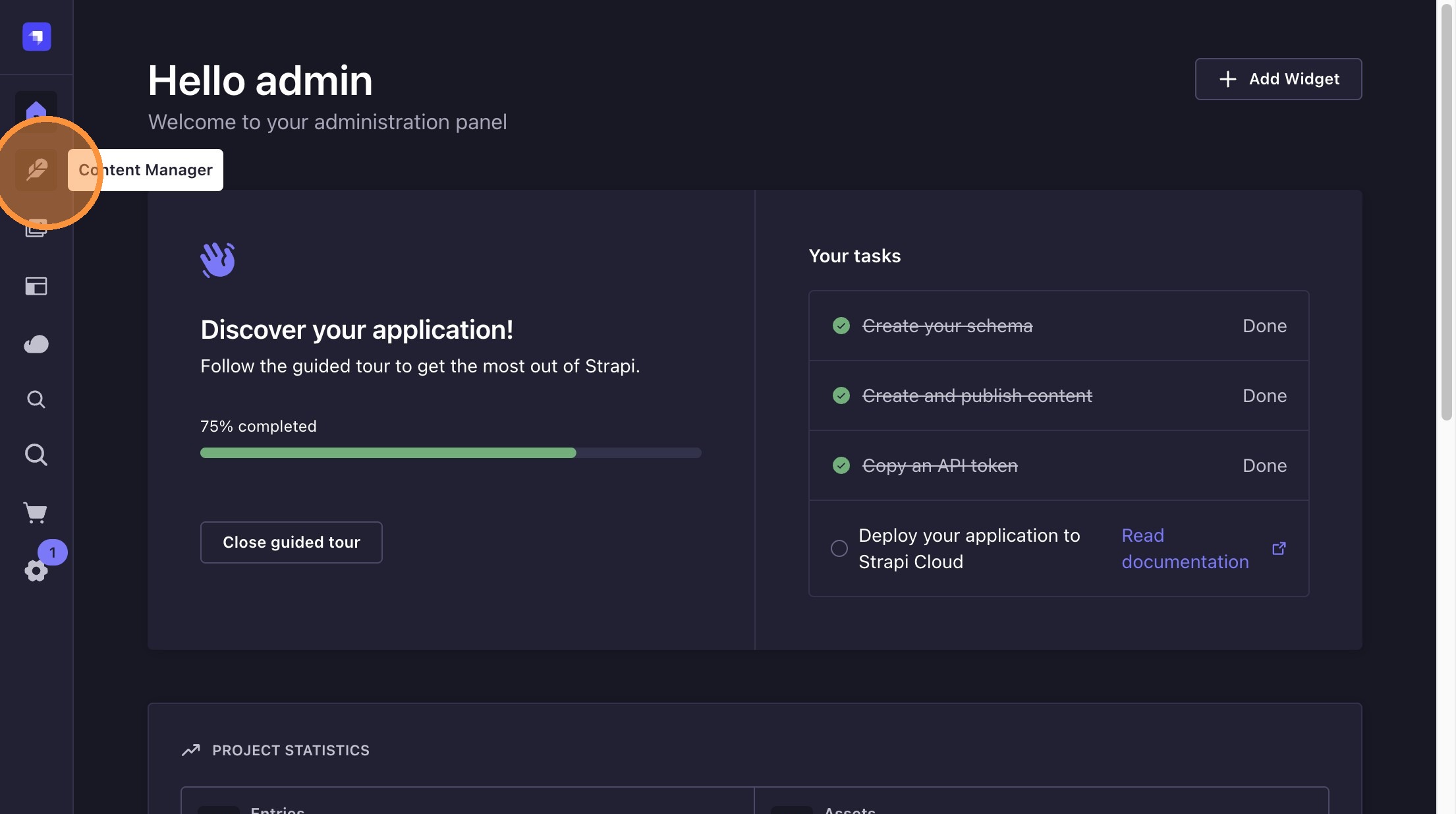
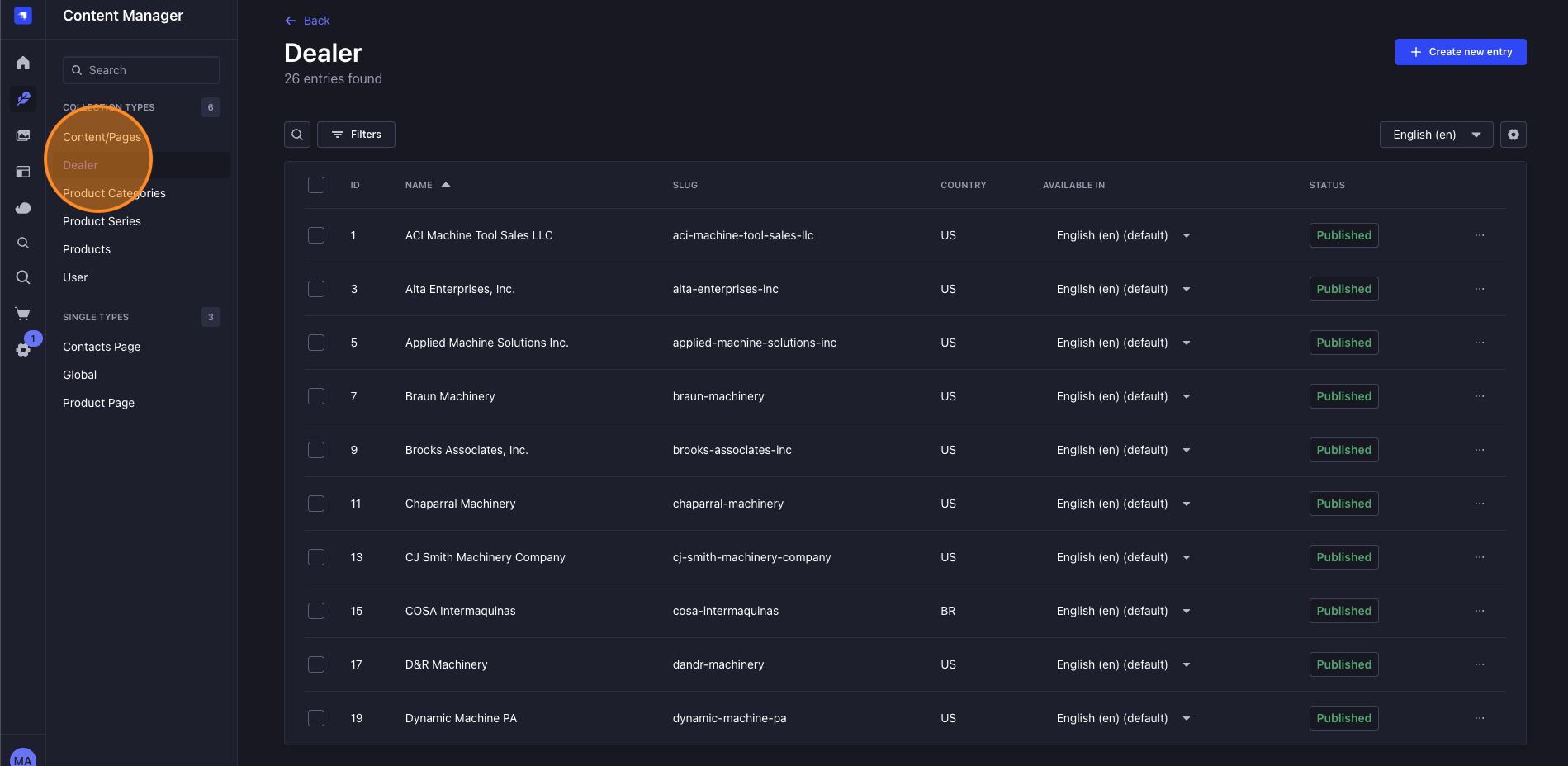
2. Click "Dealers"
Select "Dealers" from the list.
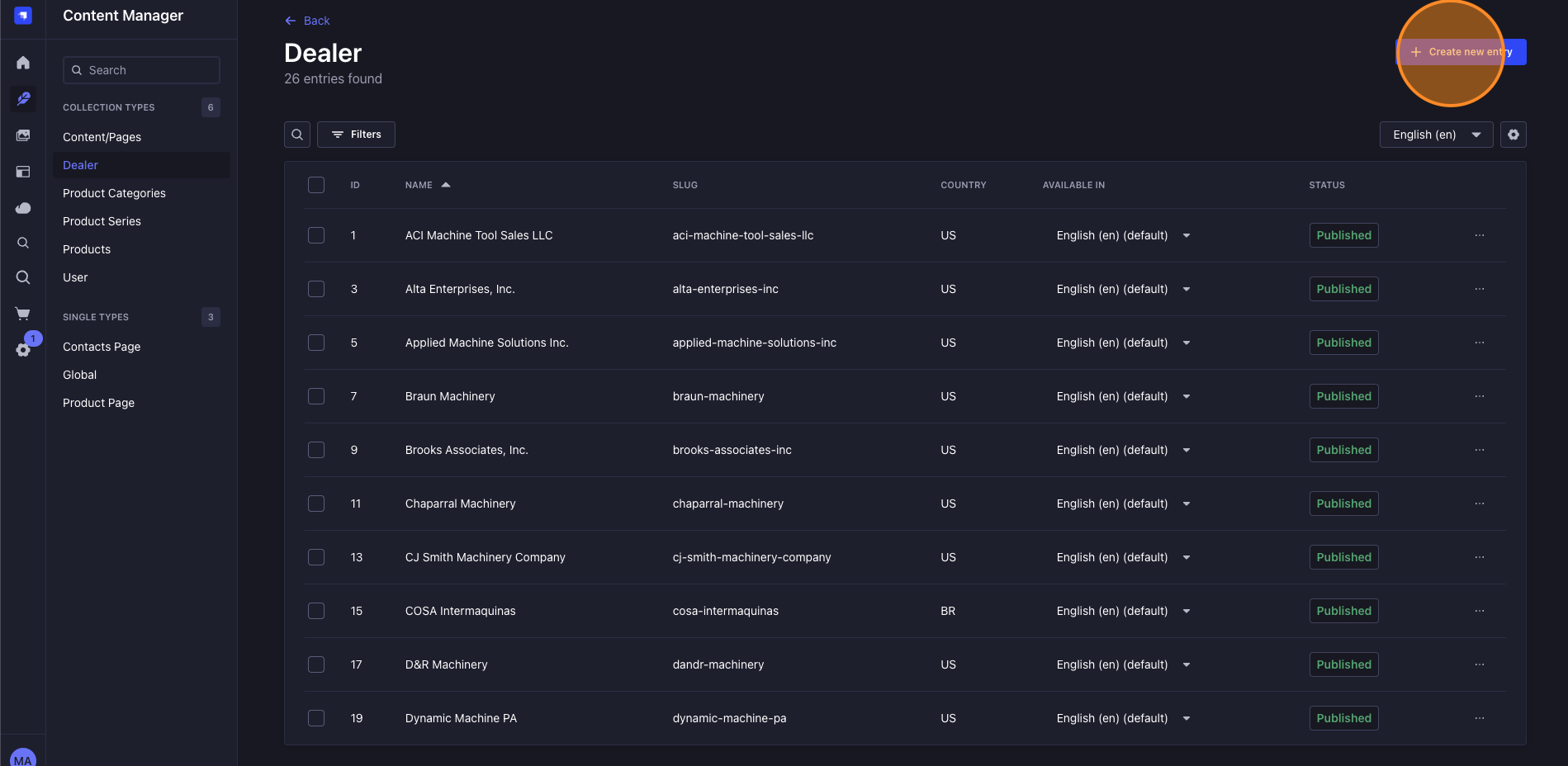
3. Click "Create New Entry"
Press the "Create new entry" button.
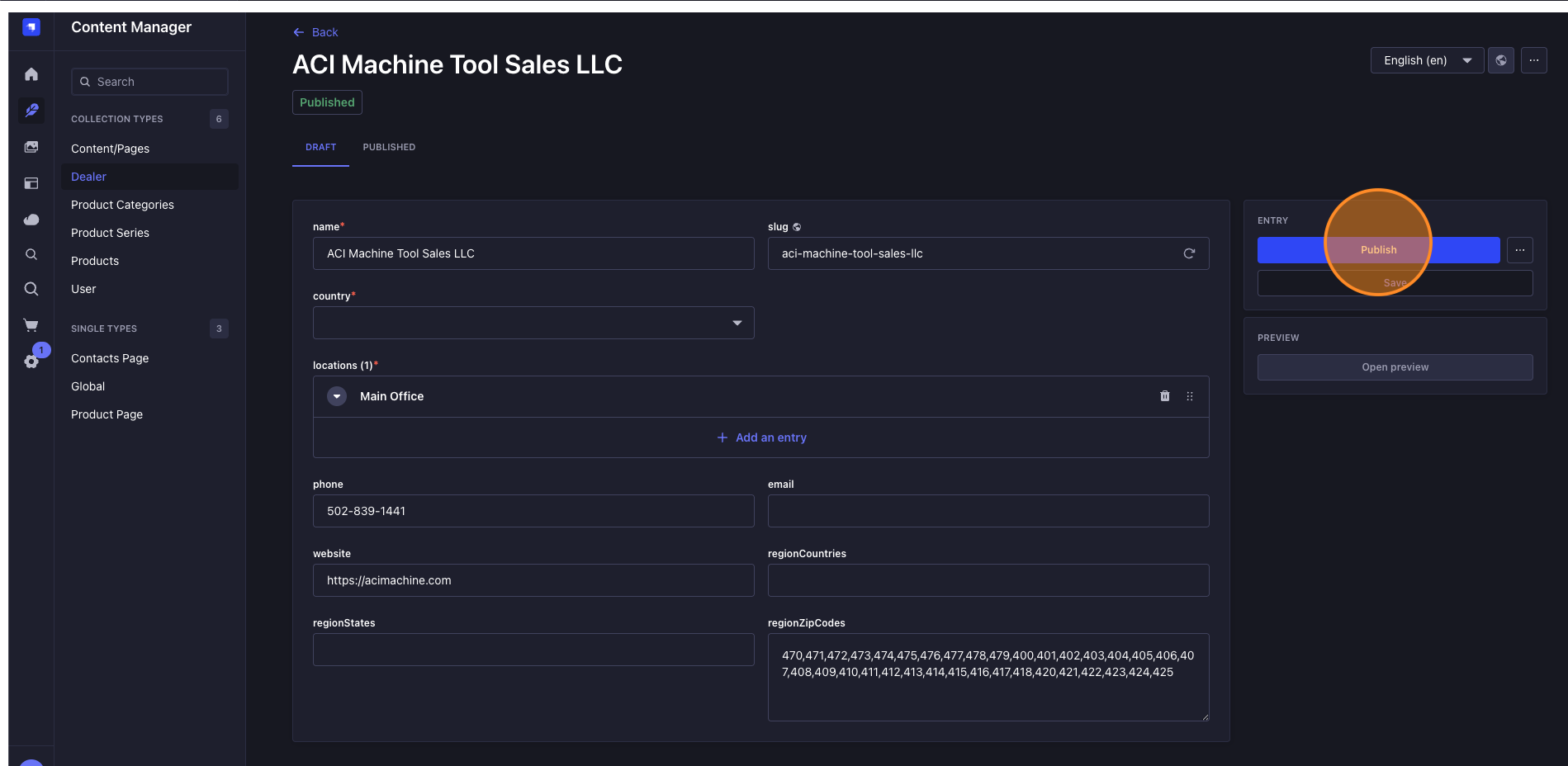
Add the necessary information to the fields.
For details on each field, see Dealer Fields Explained.
4. Click "Publish" or "Save"
Choose "Publish" to make the dealer live, or "Save" to keep it as a draft.
Edit an Existing Dealer
1. Select the Dealer to Edit
Click the dealer you want to update.
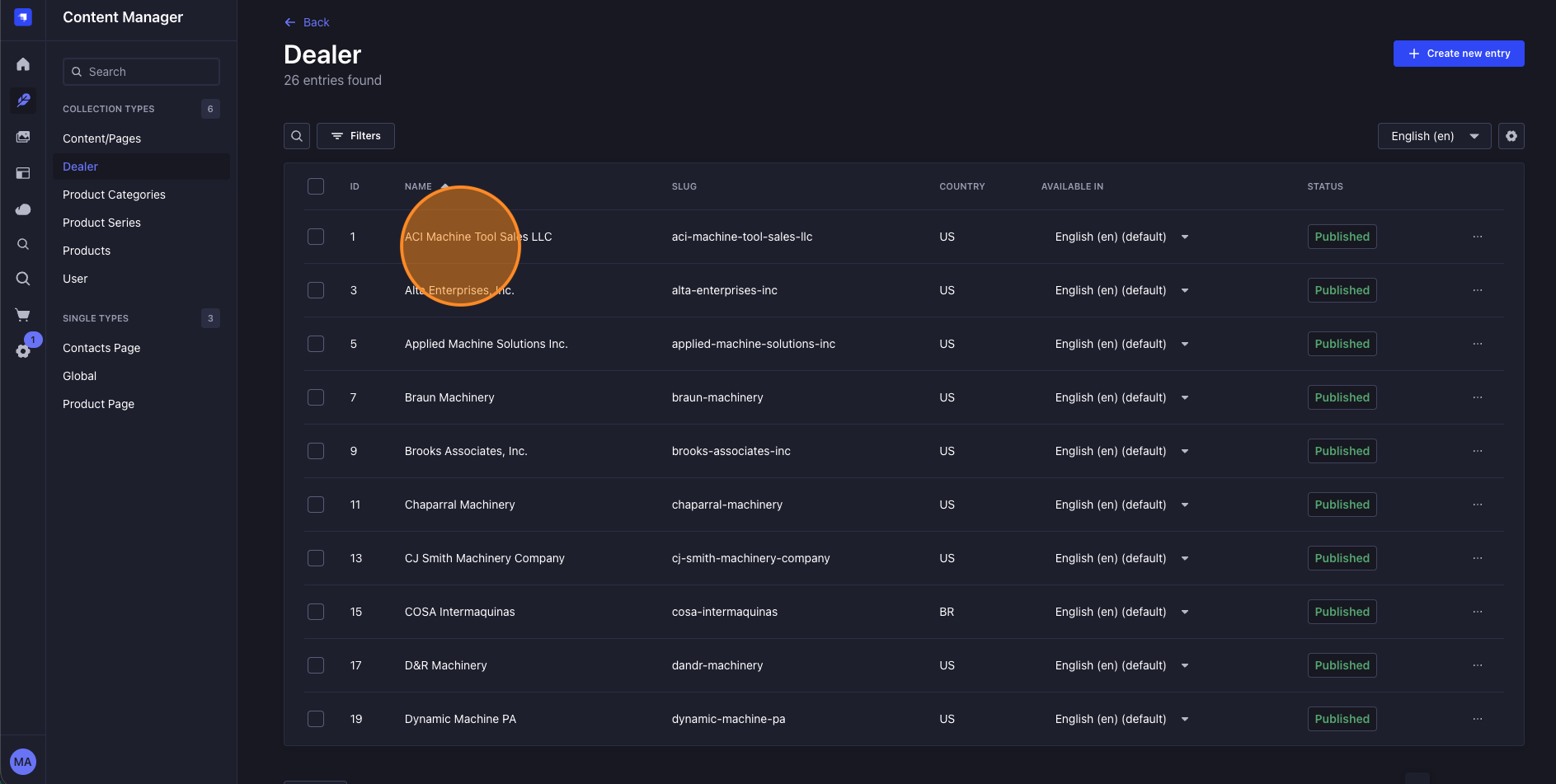
Edit the necessary information in the fields.
2. Click "Publish" or "Save"
Apply your changes by clicking "Publish" or "Save".
Delete an Existing Dealer
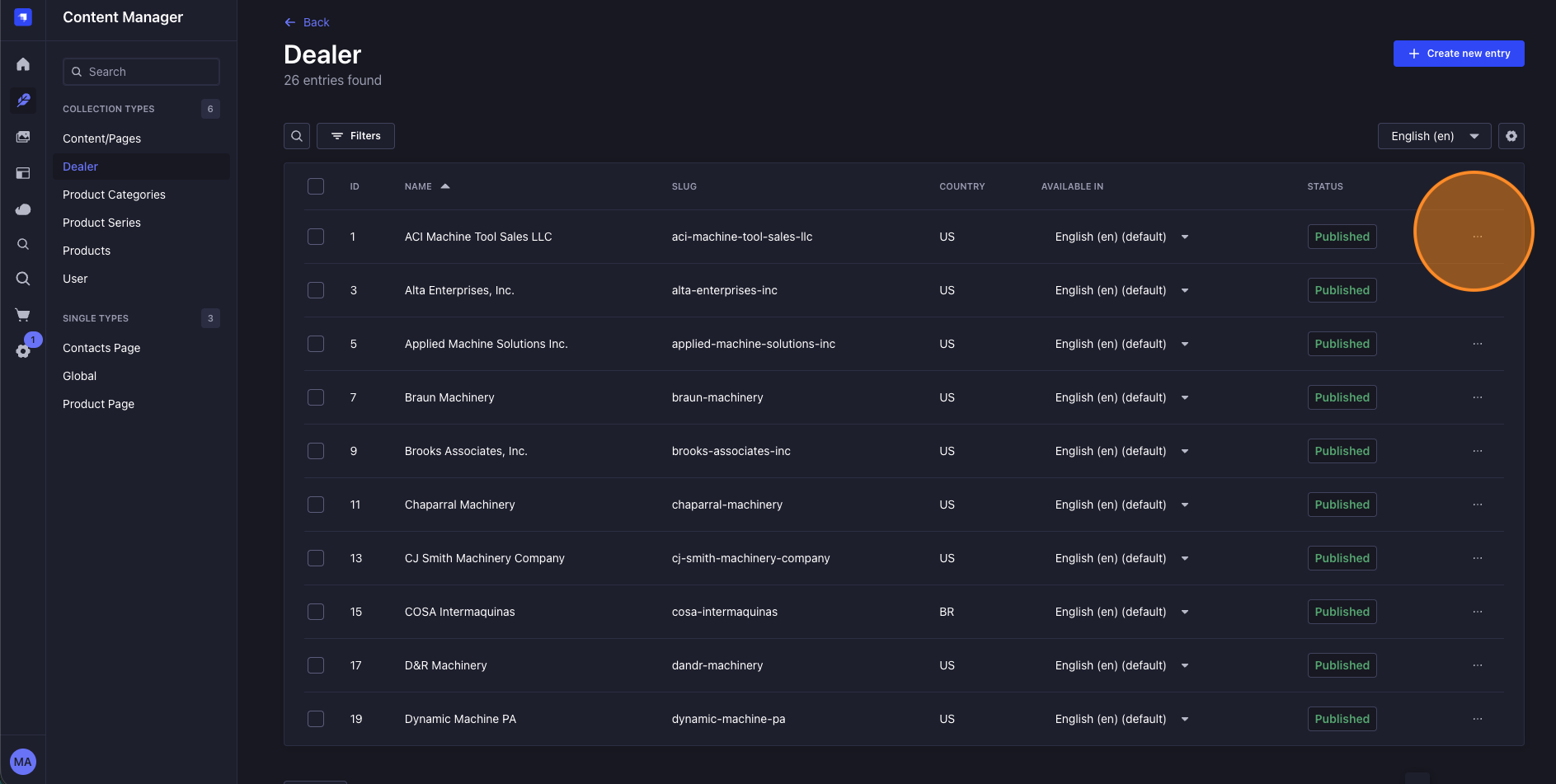
1. Click the 3 dots Icon for more options
Click the 3 dots icon to open the options menu.
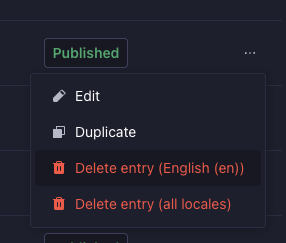
3. Select Delete for the current locale or for all locales
Choose whether to delete the dealer for the current locale or for all locales.
- Publishing a new dealer, or changes to an existing dealer, will make them live on the website immediately. Saving will keep them as a draft that is not visible to website visitors until published.
- Deleting a dealer will remove it from the website immediately. Always double-check before deleting. This action cannot be undone.